Install
1
Open Integrations
Sign in at app.partgenie.ai. Open Settings → Integrations.
2
Download KiCad
Choose KiCad, download the plugin package, and follow the on-screen install steps for your OS and KiCad version.
3
Sign in inside KiCad
Open the PartGenie panel in KiCad and sign in with the same PartGenie account you use on the web.
Part inspect
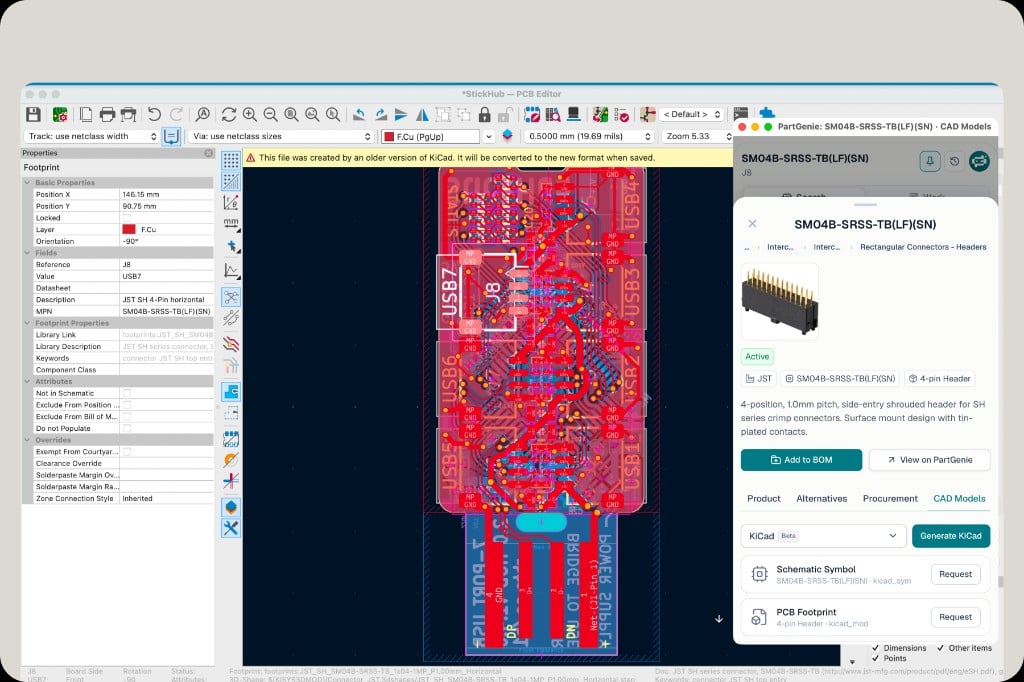
Select a footprint or symbol in KiCad, then use Inspect selection (or open the PartGenie panel for that reference).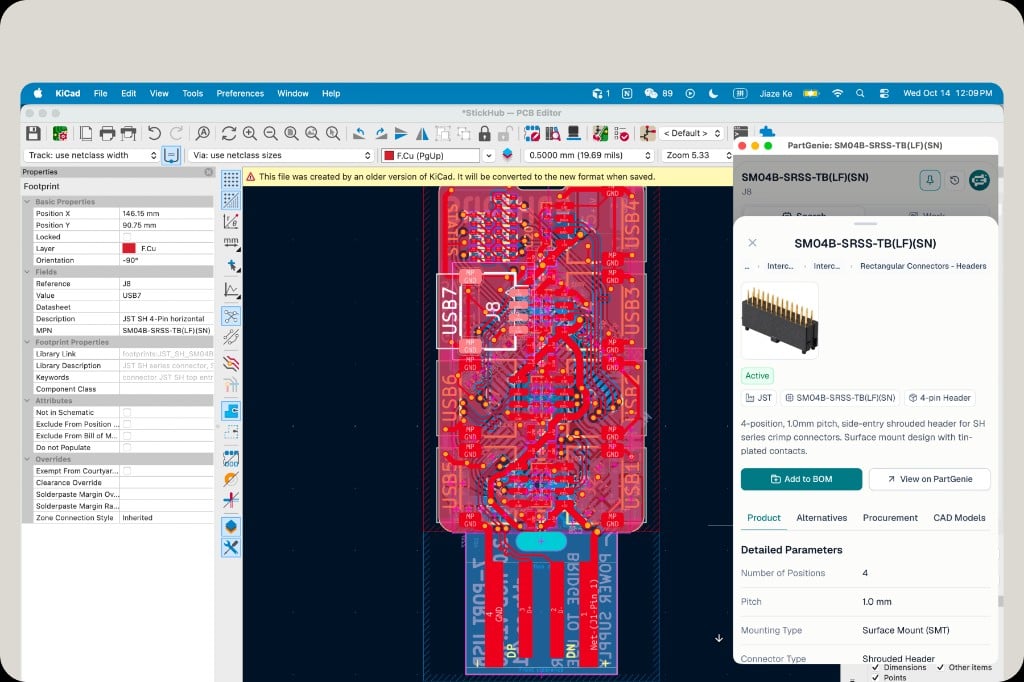
Work — project BOM sync & health
Switch the plugin to Work to act on the open KiCad project.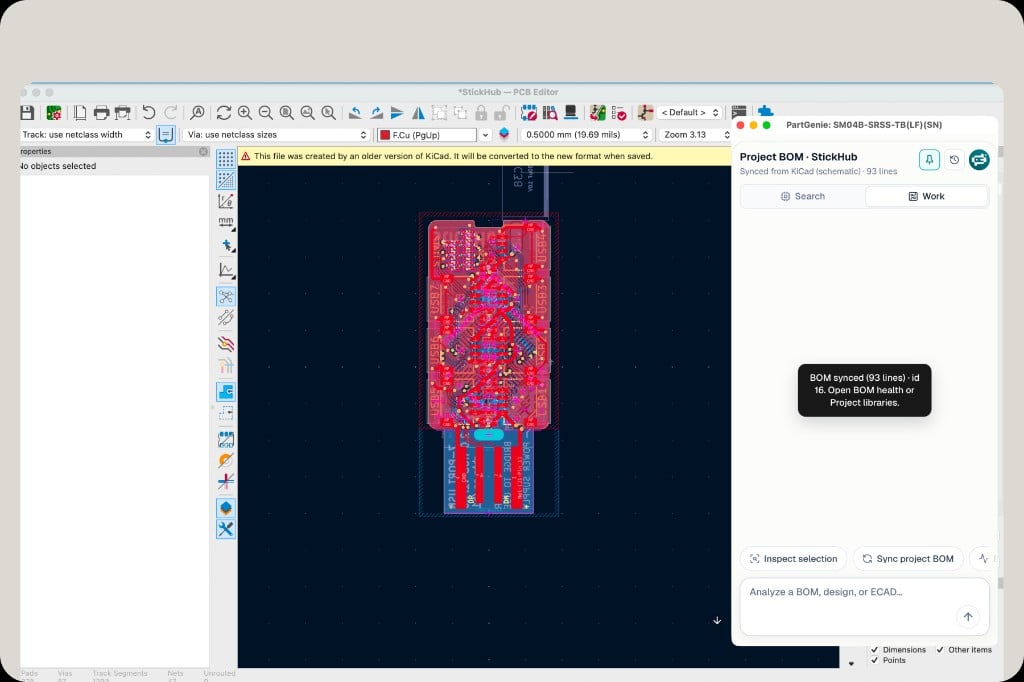
1
Sync project BOM
Click Sync project BOM. PartGenie reads lines from your KiCad schematic and opens or updates the matching BOM in your account (for example “BOM synced (93 lines)”).
2
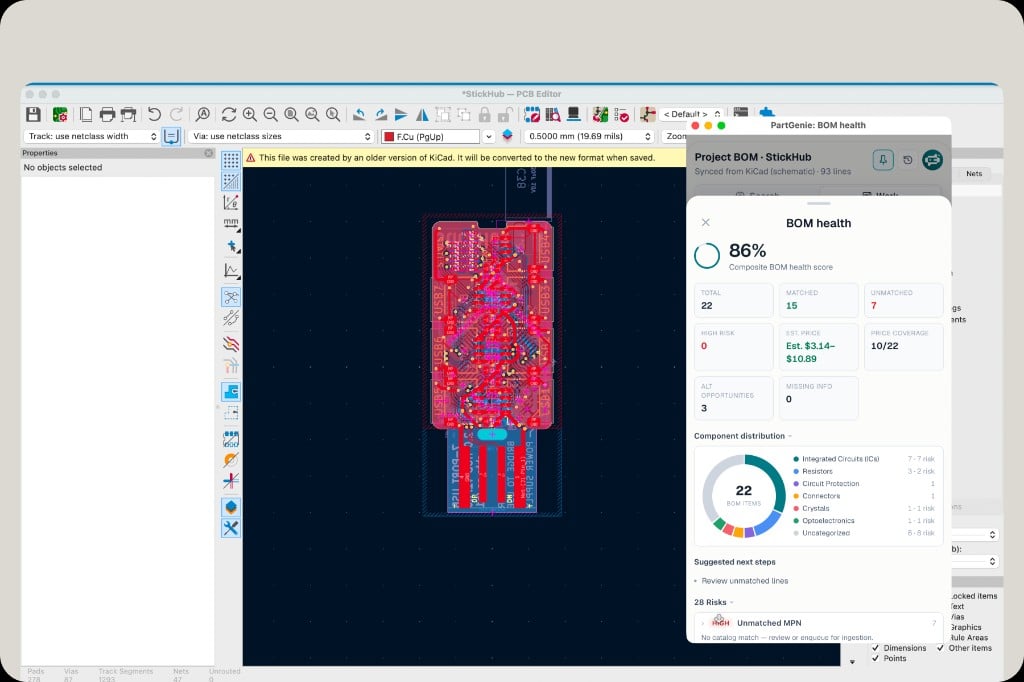
Open BOM health
From the sync confirmation or Work chat, open BOM health to review match rate, risks, and estimated cost.