

Create or upload
1
Attach the BOM
On the homepage, click Optimize BOM or switch the input to Work, then upload CSV / Excel or paste a part list. You can also open an existing BOM from Projects.
2
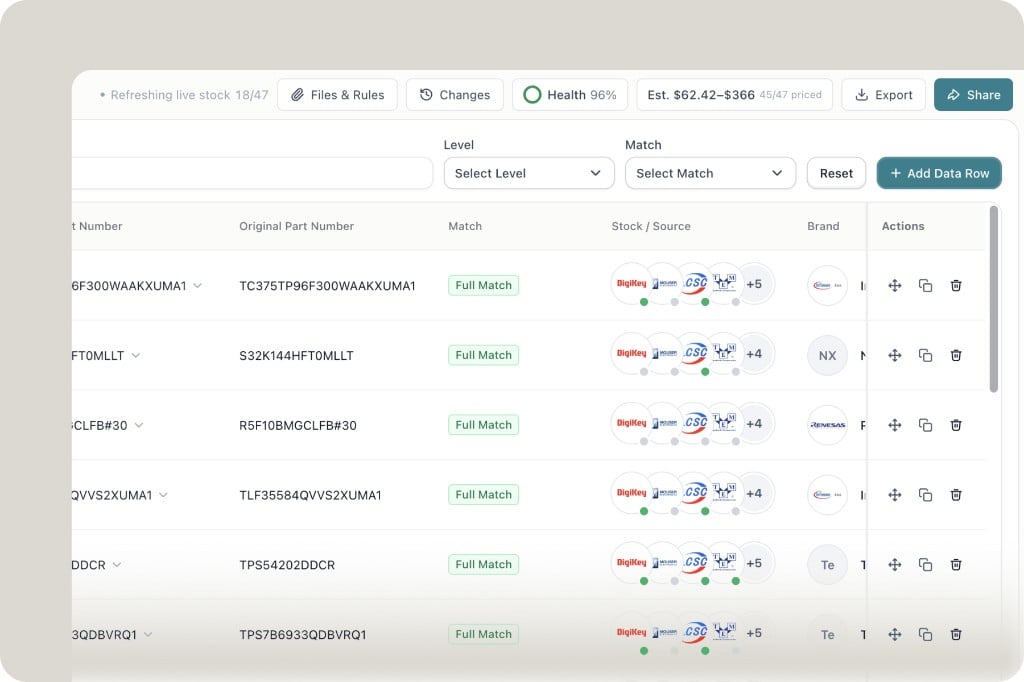
Read the toolbar
Across the top of the BOM:
- Refreshing live stock — how many lines have been priced
- Files & Rules — project files and instructions (these override your account custom instructions)
- Changes — Adopt history and version diff
- Health — score for the current BOM
- Est. — estimated cost range and how many lines are priced
- Export / Share
3
Work the table
Each row shows the original part number, Match (for example Full Match), Stock / Source distributor marks, and brand. Filter with Level and Match. Add Data Row inserts a line. Row actions copy, duplicate, or delete.
Health report
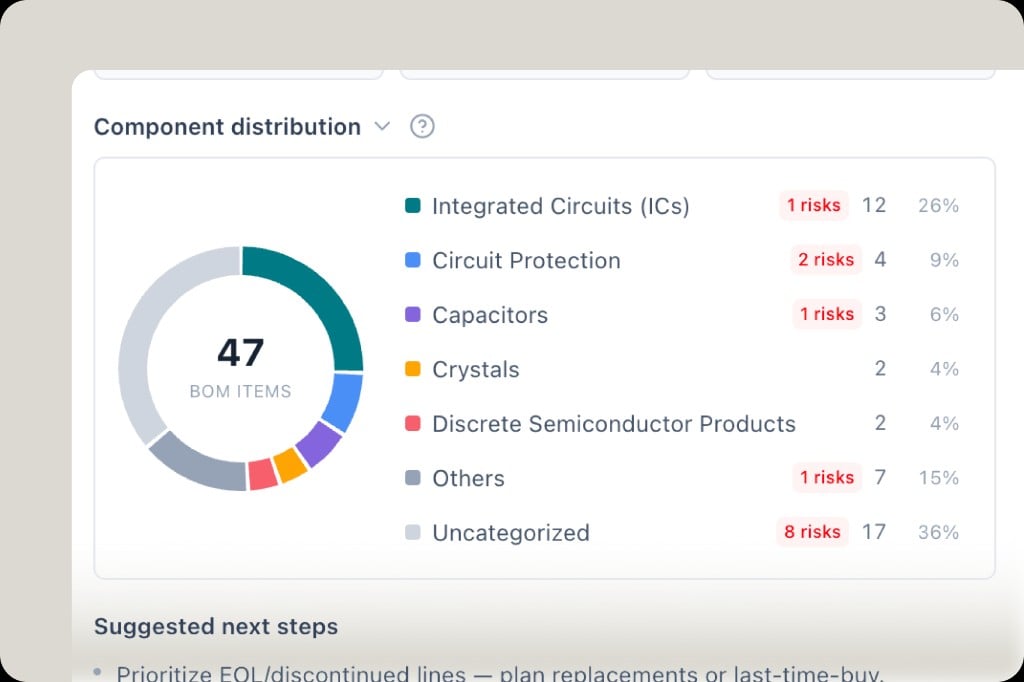
After upload, open the health overview for:- Component distribution by category (with risk counts)
- Risk list — NRND/EOL, zero stock, no sourcing data, missing manufacturer
- Bulk alternatives — scan matched lines and surface functional replacements
Engineering diff & estimated price
In the BOM toolbar:- Changes — Adopt history and version history (what replaced what, when lines changed)
- Est. price — BOM-level cost estimate from live sourcing (e.g. range + how many lines priced)
- Health — overall health score
Compare & chat context
- Select rows → Compare for side-by-side sourcing
- Multi-select BOM lines and reference them in agent chat for sourcing decisions