- Catalog models — symbol, footprint, and STEP already in PartGenie for many MPNs.
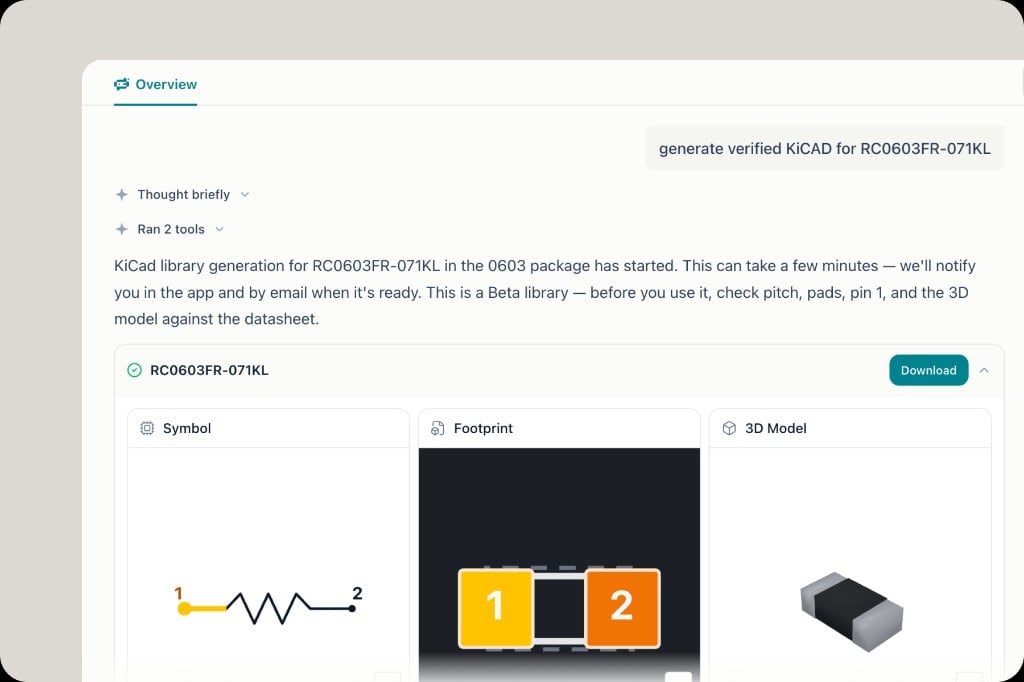
- KiCad generation (Beta) — build KiCad 8 libraries from the datasheet with evidence and import checks.
Pick a path
Details on catalog vs generated libraries: ECAD & footprints. Full generation walkthrough: KiCad library generation.
Download catalog models
1
Open the part
In Search, click the MPN badge or part card. In Chrome, open CAD models from the sidebar on a supported distributor page.
2
Open CAD Models
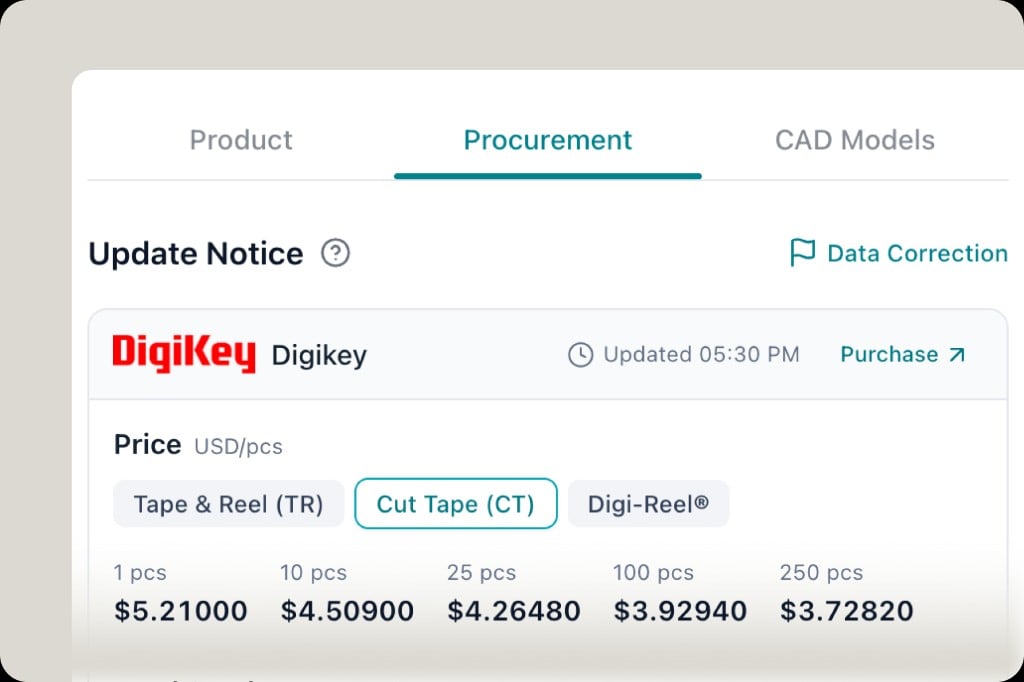
In the component drawer, tabs are Product, Procurement, and CAD Models. Procurement is live price and stock; CAD Models is the footprint library.
3
Choose format and download
Download the symbol, footprint, and/or 3D files offered for your EDA (Altium, KiCad, Eagle, OrCAD, Allegro, and others when listed). Not every MPN has every format—if the tab is empty, generate KiCad or contact support.
4
Import into your EDA
Follow your vendor’s import steps for the file type you downloaded. Confirm pin 1, pitch, and courtyard against the datasheet before you release the library to the team.
Altium Designer
- Download the Altium (or neutral PCB footprint / STEP) assets from CAD Models.
- In Altium, import or copy into your project libraries (.PcbLib / .SchLib or unified library flow your team uses).
- Assign the footprint and 3D model on the schematic symbol, then run your usual DRC.
Eagle / Fusion Electronics
Download Eagle-compatible or generic footprint assets when listed on CAD Models, then add them through Eagle’s library editor or Fusion Electronics library management.OrCAD / Allegro
Download the OrCAD or Allegro format when PartGenie lists it for the MPN, then import through your Cadence library path. STEP models attach for 3D collision checks where your flow supports them.KiCad import
Generation happens in PartGenie (web or Chrome). KiCad 8 is the target format.1
Generate the library
In Search (not Work), ask for example:Or use CAD models → generate from the part page. Wait for the in-app notice and email—generation can take a few minutes.
2
Review evidence
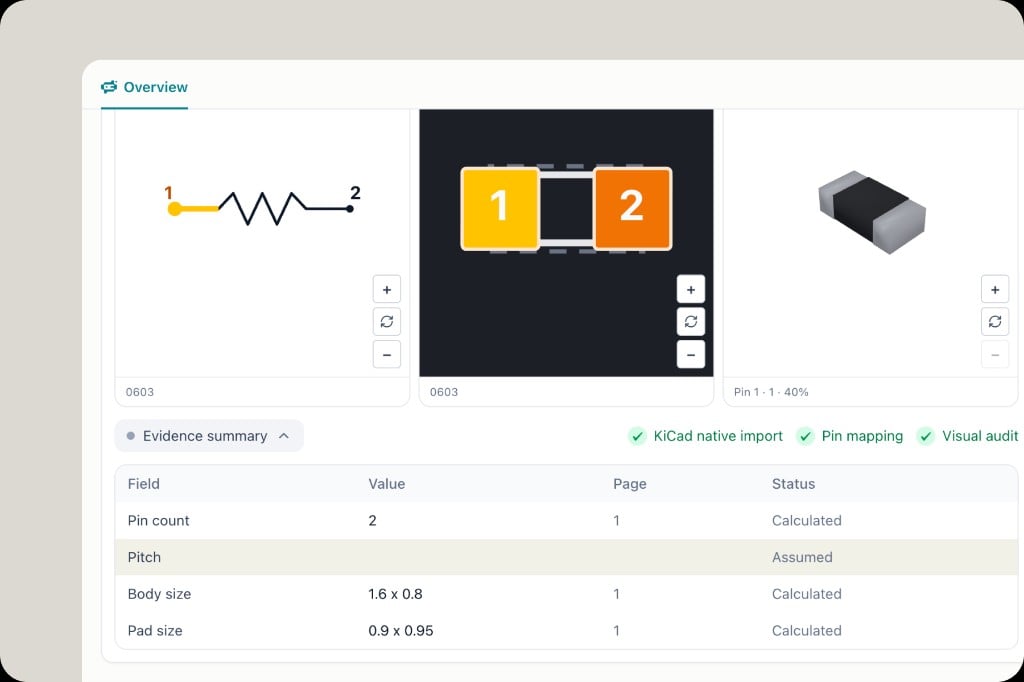
Open the finished card: Symbol, Footprint, 3D Model, and Evidence summary (Calculated vs Assumed). Check KiCad native import, Pin mapping, and Visual audit before you download.
3
Download
Click Download on the library card. You receive KiCad 8
.kicad_sym, .kicad_mod, and 3D files PartGenie already checked with a machine import pass.4
Add to your KiCad project
In KiCad 8:
- Place symbol and footprint files in your project or global library folders (or paths your team standardizes on).
- Update sym-lib-table and fp-lib-table so KiCad resolves the new library names.
- Reload libraries in the Symbol or Footprint editor, place the part on the schematic, and associate the footprint.
- Open the 3D viewer and compare body height and pin 1 to the datasheet.