

Quick Start
1
Register
Open app.partgenie.ai and sign in with email, Google, or LinkedIn.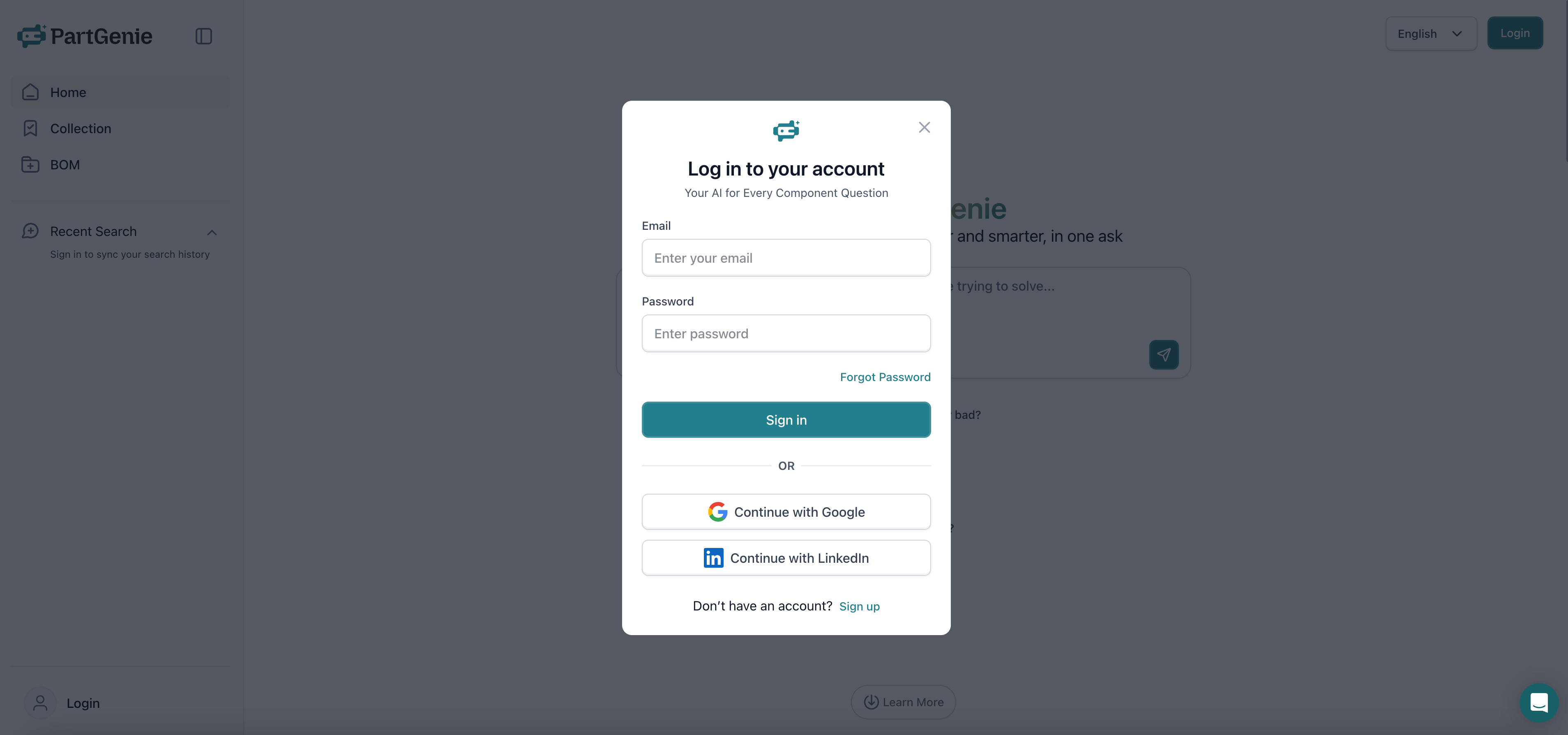
2
Complete your profile
Set role and industry so recommendations fit your work.
3
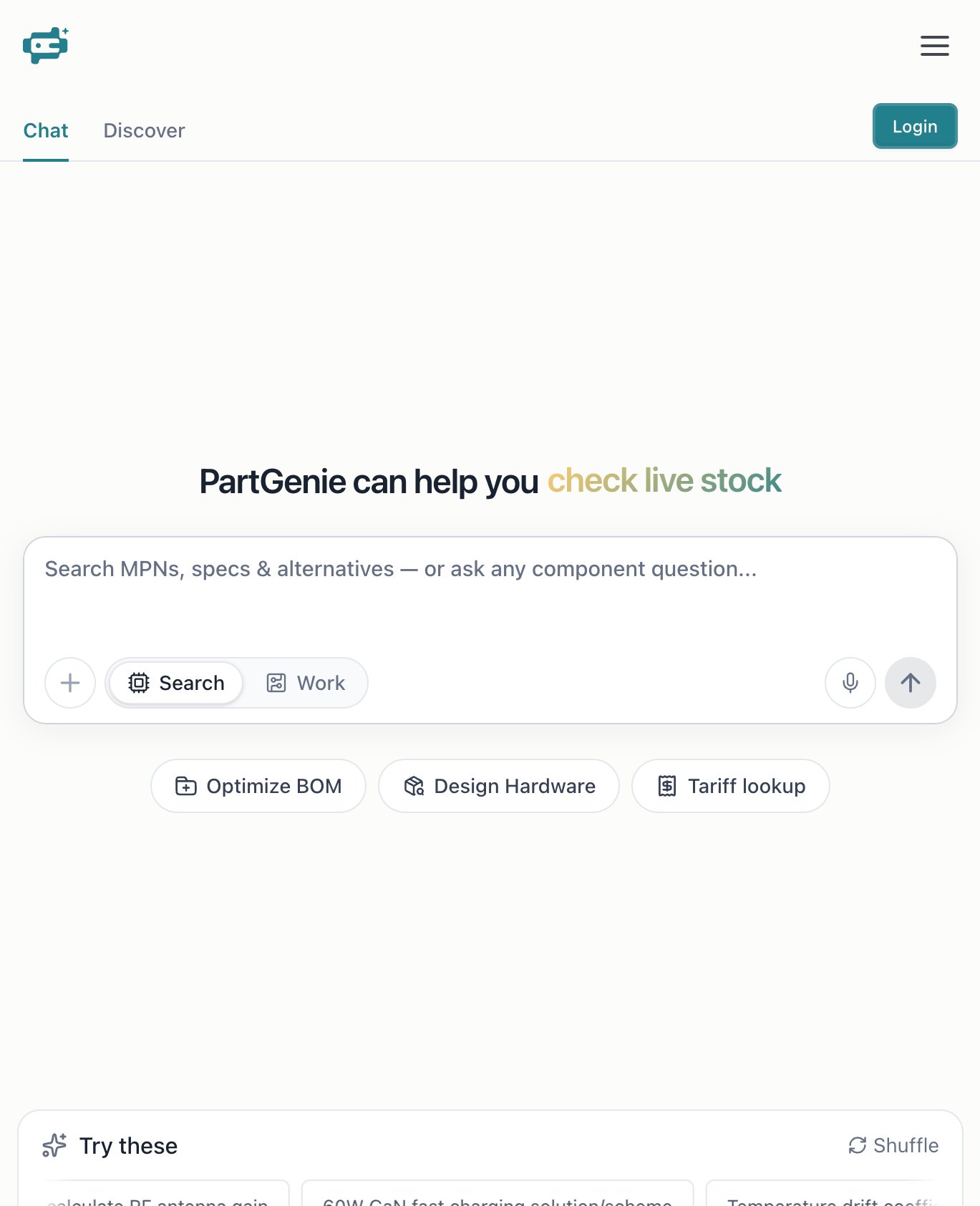
First search
Stay on Search and try an MPN or natural-language ask:Use voice, file/image attach, or suggested prompts under the box.
Homepage modes
Details: AI Search · PartGenie Work
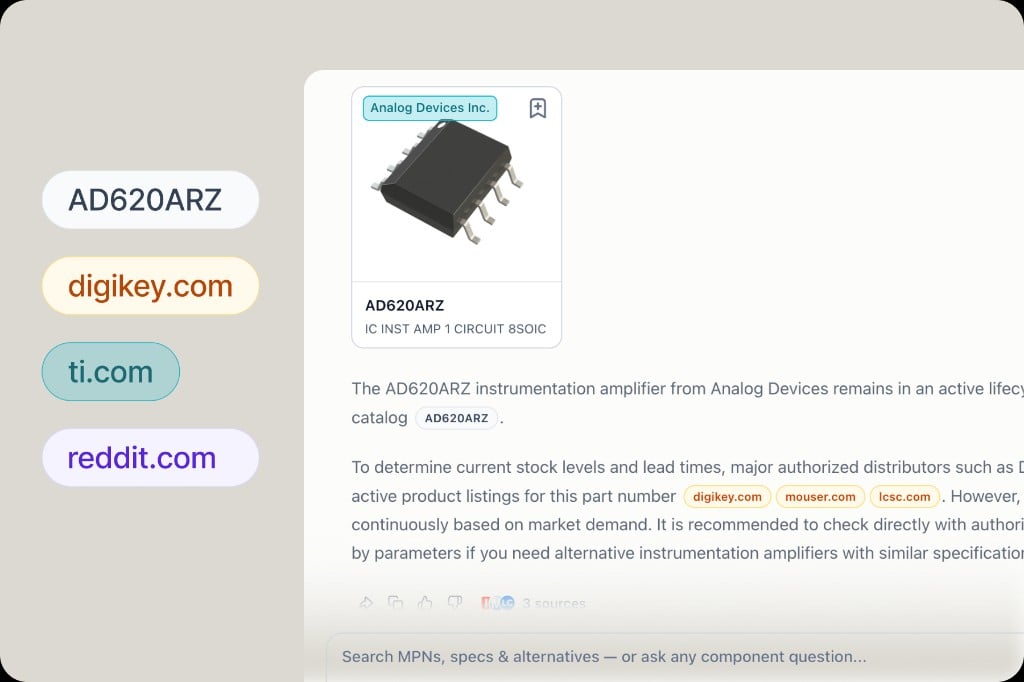
After your first answer
- Click MPN / page citation badges to verify sources — Datasheet citations
- Open the component drawer → Procurement for live stock/price — Live sourcing
- Try a follow-up, or Design from chat — Design mode
First BOM in minutes
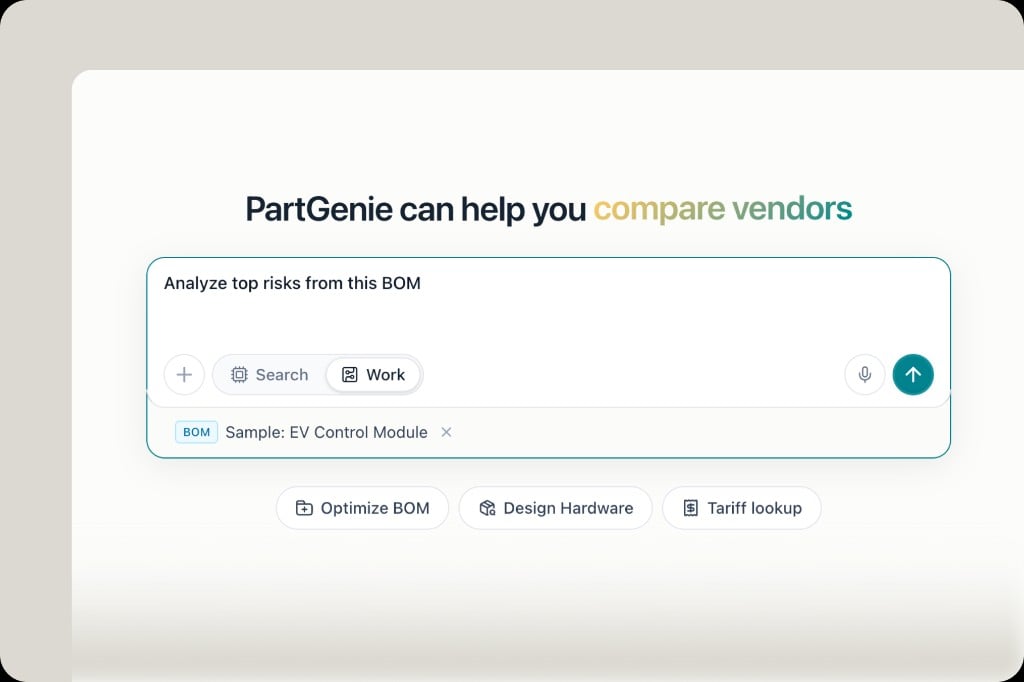
- Switch to Work (or use Optimize BOM) and upload CSV/Excel / paste a part list
- Ask:
Analyze top risks from this BOM - Review health, Adopt alternatives, check Changes and Est. price
Sidebar essentials
- Search — MPN Q&A; ⌘K jumps across chats, Knowledge, and Projects
- Watch — monitoring tasks and Findings
- Collection — saved parts and brands
- Projects — hardware projects (BOM + Design in one shell)
- Library — Knowledge files; team Parts library when on a Team workspace; Launch for connectors
- Credits (header) — balance, Top up, plan — Membership
Settings worth opening early
- Language — Auto or a specific locale
- Distributors — which live sources appear
- Notifications — email / in-app preferences