

Generate a library
1
Start from Search
Open app.partgenie.ai and stay on Search (not Work).
2
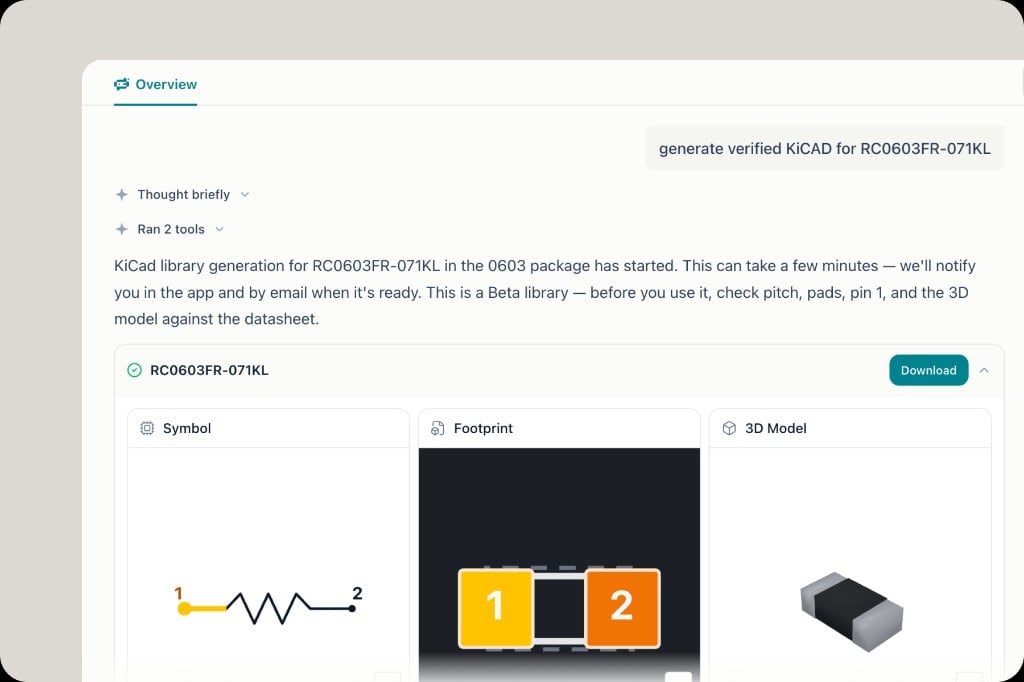
Ask for a verified library
Use the MPN and package in the prompt:You can also say symbol, footprint, and 3D model for a specific MPN such as
STM32F103RET6 or OPA810IDBVR.3
Wait for the job
Generation can take a few minutes. PartGenie tells you it has started and notifies you in the app and by email when the library is ready. You can leave the chat and come back from Recents or ⌘K.
4
Review Symbol, Footprint, and 3D
The finished card shows three previews:
- Symbol — schematic symbol and pin numbers
- Footprint — pad layout (for example 0603 pads 1 and 2)
- 3D Model — STEP body
5
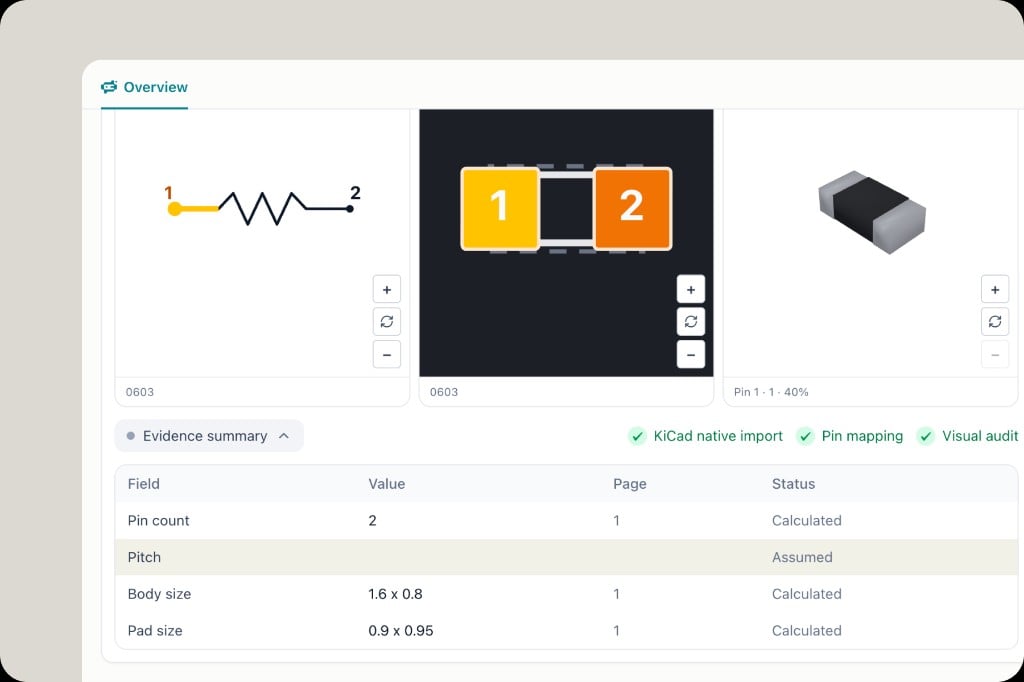
Open the evidence summary
Expand Evidence summary. Each row is a field (pin count, pitch, body size, pad size), the value used, the datasheet page it came from, and a status:
- Calculated — derived from datasheet or package data
- Assumed — a default the engine filled in (pitch is a common one)
6
Download
Click Download on the part card and import the files into your KiCad project libraries.
Before you fabrication-release
- Open the cited datasheet page from the evidence table (see Datasheet citations)
- Confirm pin 1 on both the symbol and the footprint
- If something is wrong, reply in the same chat with the correction — and send feedback so the generator can improve
Where files go afterward
Downloaded libraries are yours to import into KiCad. The chat that produced them stays in Recents. Related reports and files can also land in Knowledge when PartGenie saves the artifact.Related
- ECAD & footprints — catalog models already on the part
- Design mode — architecture and BOM before you draw the board
- AI Search