

Profile
Update nickname, avatar, role, and industry so recommendations stay relevant.Security & login
- Email — bind / change with verification code
- Password — set or change under account & password
- Google / LinkedIn (and region-specific methods such as phone/WeChat where available) — bind for faster login
- Forgot password — use in-app reset, or email [email protected]
Language
Settings → Language: pick a locale or Auto (follow browser). Supported locales include English, Deutsch, 日本語, 한국어, 繁體中文, Français, Español (México).Integrations (Chrome, KiCad)
Settings → Integrations: install PartGenie for Chrome or the KiCad plugin, and manage connected tools. See Integrations and KiCad plugin.Distributors (live sourcing)
Settings → Distributors: toggle DigiKey, LCSC, TME, Unikeyic, OnlineComponents, WinSource, Arrow, and other sources. Preferences apply across component detail, BOM, and compare. See Live sourcing.Credits & billing
- Header Credits panel — monthly balance, Top up, upgrade
- Plans and Pro 7-day trial — Membership & pricing
Notifications
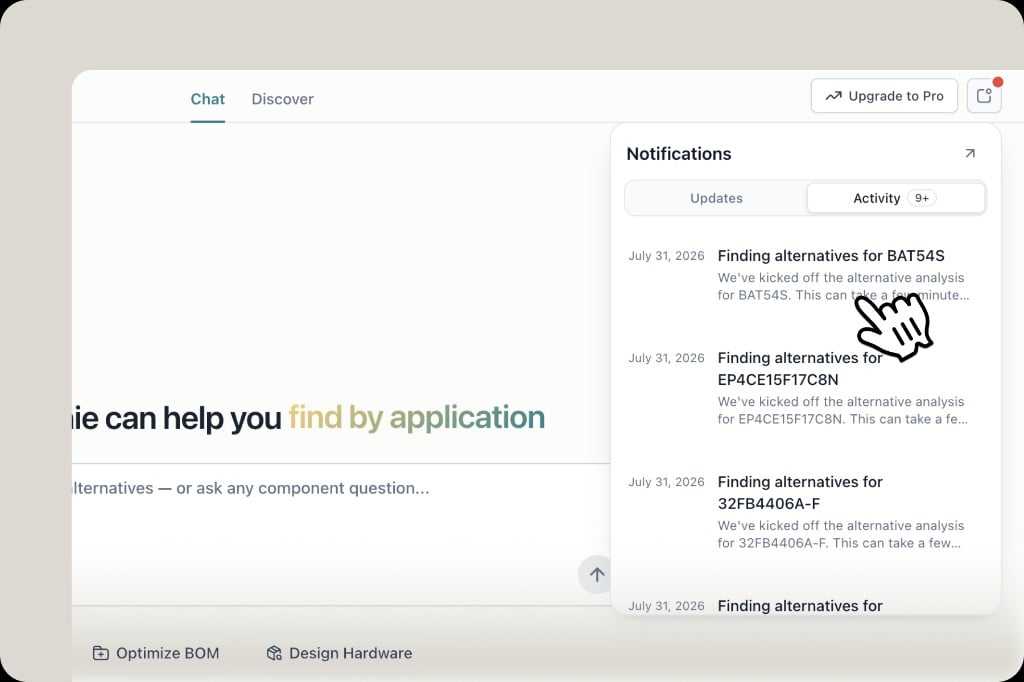
Open the bell in the header for the notification center, or Settings → Notifications for channels and sounds.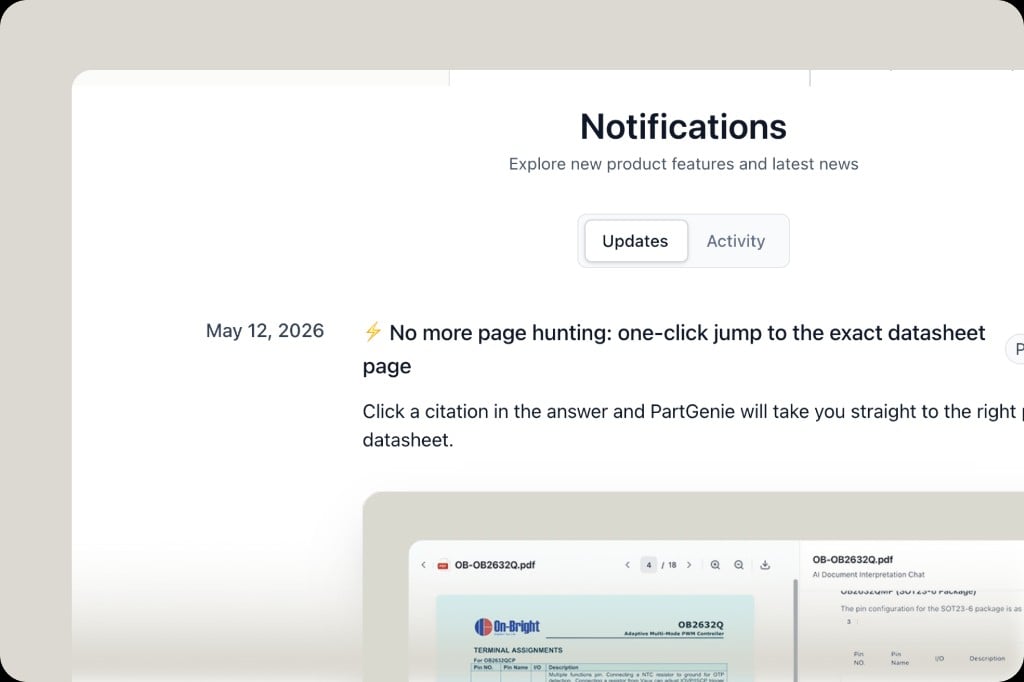
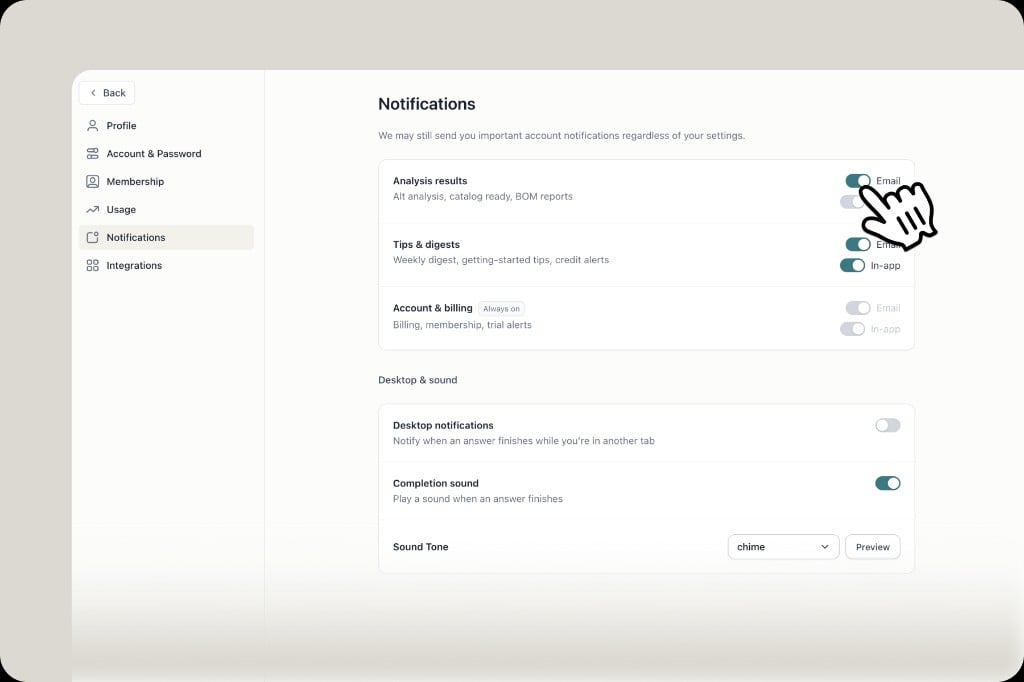
- Email and in-app — turn channels on or off for analysis results, tips, and task completion (including professional ECAD when ready).
- Search-complete sound — optional tone when an answer finishes; preview and pick a sound in Settings.