

Start a design
1
Open Design
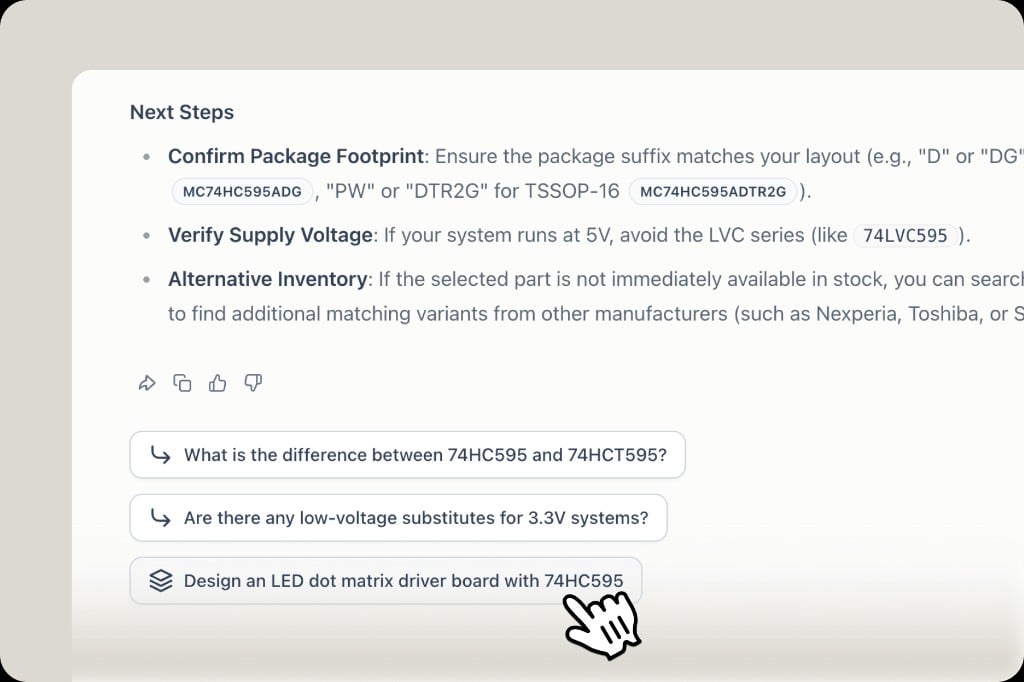
On the homepage, click Design Hardware, or choose Work and describe the product. You can also use a Design follow-up under a component answer to start from that part.
2
Describe the product
Say what it is, the constraints that matter, and who it is for. Example: a robot vacuum with a height limit, LiDAR, and a mid-range cost target.
3
Follow the stages
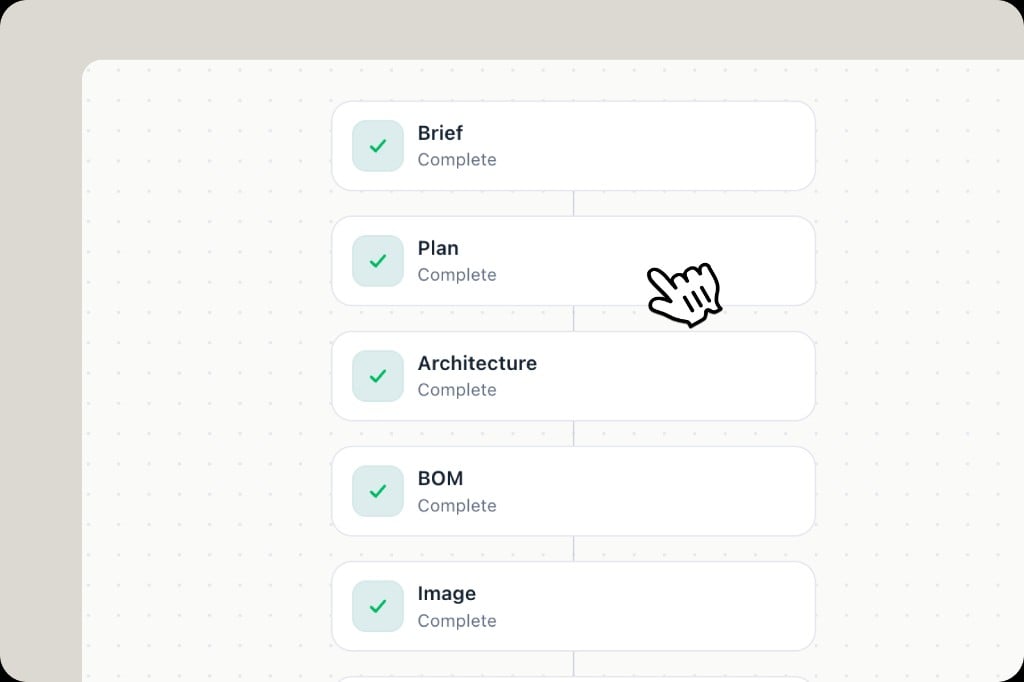
The canvas lists the stages as they finish: Brief → Plan → Architecture → BOM → Image. A green check means that stage is complete. Click a stage to open it.
Review the plan
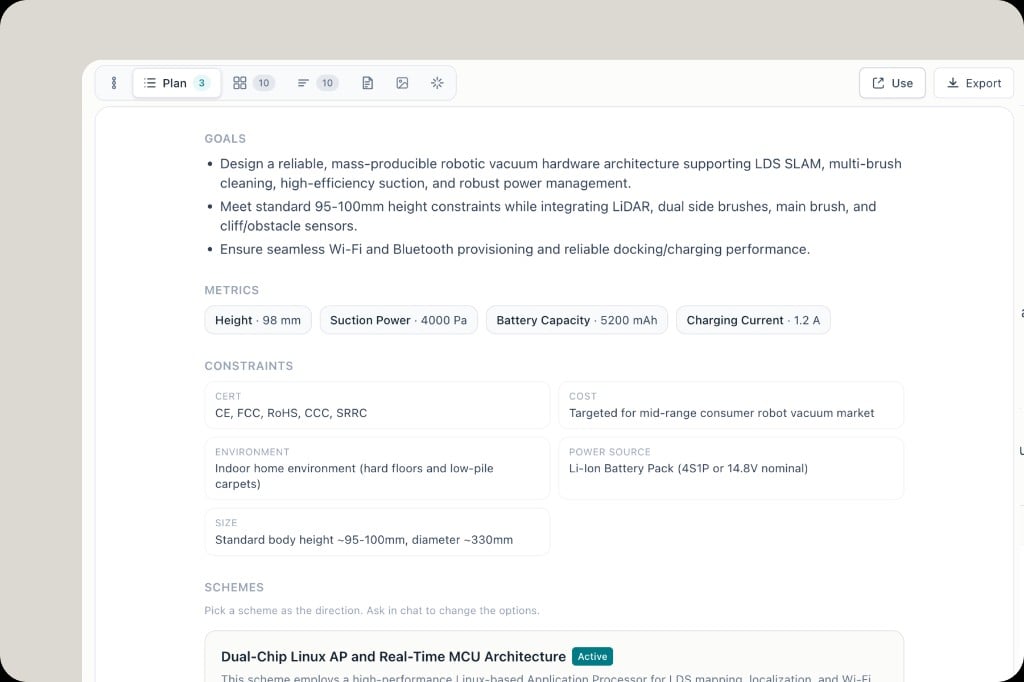
Plan is where you choose a direction before the rest of the pack is treated as final. The plan page shows:- Goals — what the hardware must do
- Metrics — numbers such as height, suction, battery, charge current
- Constraints — certification, cost, environment, power source, size
- Schemes — more than one architecture. One is marked Active
Images
The Image stage can show more than one view. The large frame is the current view (often labeled Hero). Thumbnails underneath switch angle. Click a thumbnail to review that view.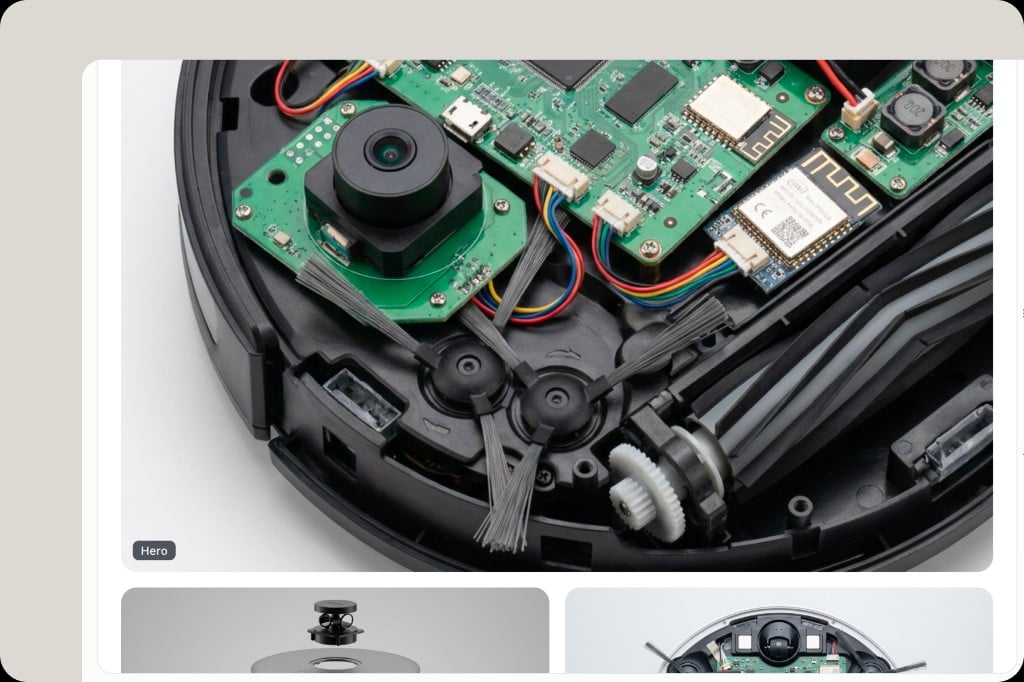
After the pack exists
- The initial BOM from Design can be opened and checked like any other BOM: health, live stock, alternatives. See BOM management.
- Parts you will layout need ECAD separately: catalog files on CAD Models, or a generated library. See ECAD & footprints and KiCad library generation.
- Design spends credits. See Membership & pricing.