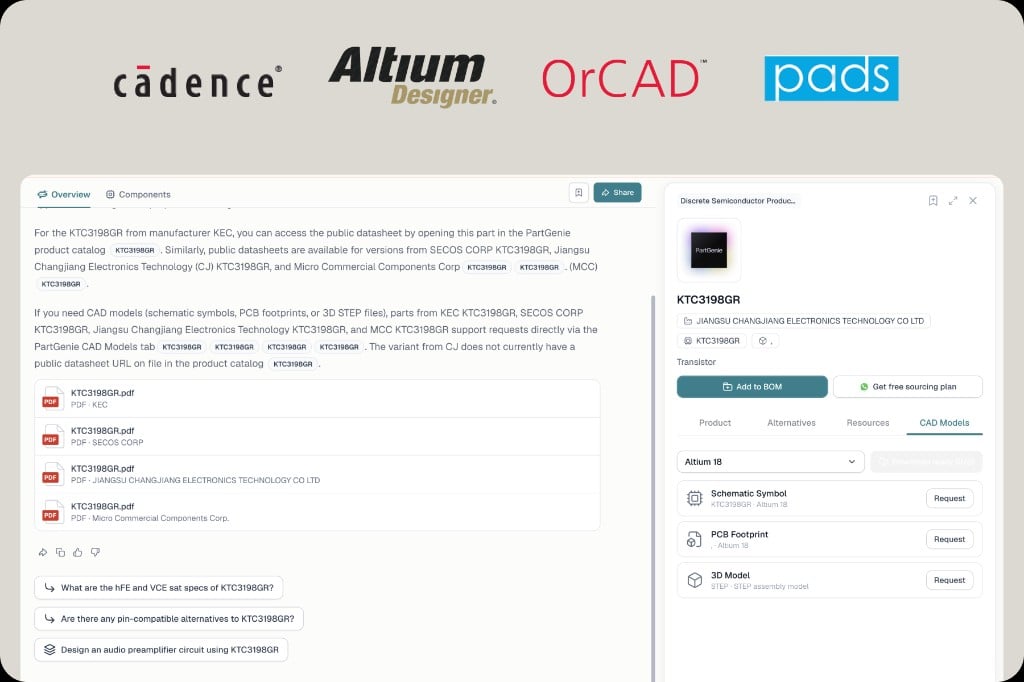
##カタログモデルを取得する
1
Open the part
Search the MPN, then click the MPN badge in the answer or the part card. That opens the component drawer.
2
Switch to CAD Models
The drawer tabs are Product, Procurement, and CAD Models. Procurement is live price and stock. CAD Models is the footprint library for that part.
3
Pick your EDA format
Use the format dropdown (for example Altium 18, Cadence, OrCAD, PADS, or KiCad when listed).
4
Request or download
Click Request for schematic symbol, PCB footprint, or STEP 3D when FootprintKu fulfills professional models for that MPN. Download directly when a catalog file is already available.Not every MPN has every format. If nothing is listed, use KiCad generation instead of guessing a generic 0603.