

作成またはアップロード
1
Attach the BOM
On the homepage, click Optimize BOM or switch the input to Work, then upload CSV / Excel or paste a part list. You can also open an existing BOM from Projects.
2
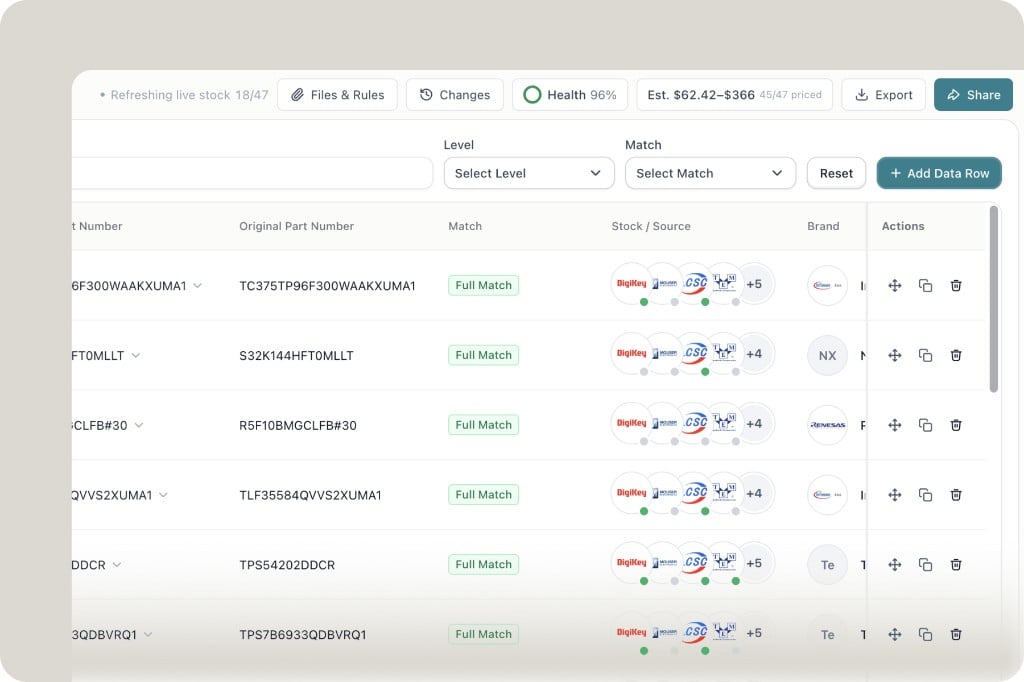
Read the toolbar
Across the top of the BOM:
- Refreshing live stock — how many lines have been priced
- Files & Rules — project files and instructions (these override your account custom instructions)
- Changes — Adopt history and version diff
- Health — score for the current BOM
- Est. — estimated cost range and how many lines are priced
- Export / Share
3
Work the table
Each row shows the original part number, Match (for example Full Match), Stock / Source distributor marks, and brand. Filter with Level and Match. Add Data Row inserts a line. Row actions copy, duplicate, or delete.
健康レポート
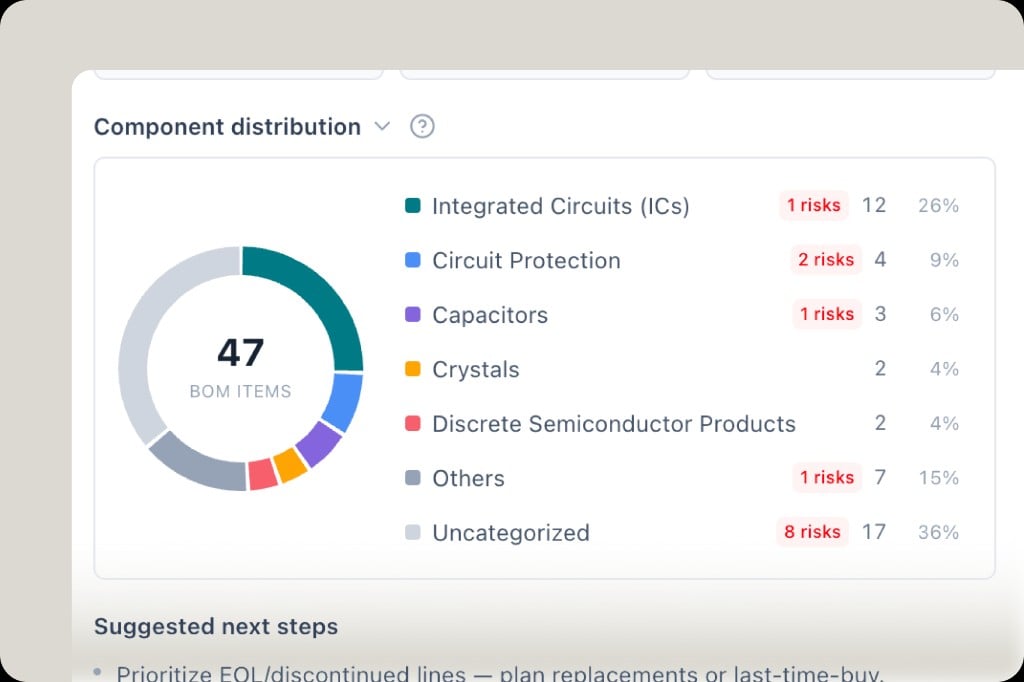
アップロード後、ヘルスの概要を開いて以下を行います:- ** カテゴリ別のコンポーネント分布 ** (リスクカウントを含む)
- ** リスクリスト ** - NRND/EOL、在庫ゼロ、ソーシングデータなし、製造元不明
- ** 大量の代替品 ** – スキャンに一致する線と表面機能の置き換え
エンジニアリング差と推定価格
BOM ツールバーで:- ** 変更 **—採用履歴とバージョン履歴 (何が何を置き換えたか、行が変更された場合)
- ** 東部価格 ** -ライブソーシングからの BOM レベルのコスト見積もり (例:範囲 + 価格設定されたライン数)
- Health – 全体的なヘルススコア
比較とチャットのコンテキスト
- 行を選択→ ** 並列ソーシングのための比較 **
- BOM 行を複数選択し、エージェントチャットで参照してソーシング決定を行う