

Installer
1
Open Integrations
Sign in at app.partgenie.ai. Open Settings → Integrations.
2
Download KiCad
Choose KiCad, download the plugin package, and follow the on-screen install steps for your OS and KiCad version.
3
Sign in inside KiCad
Open the PartGenie panel in KiCad and sign in with the same PartGenie account you use on the web.
Partie inspecter
Sélectionnez une empreinte ou un symbole dans KiCad, puis utilisez * * Inspecter la sélection* * (ou ouvrez le panneau PartGenie pour cette référence).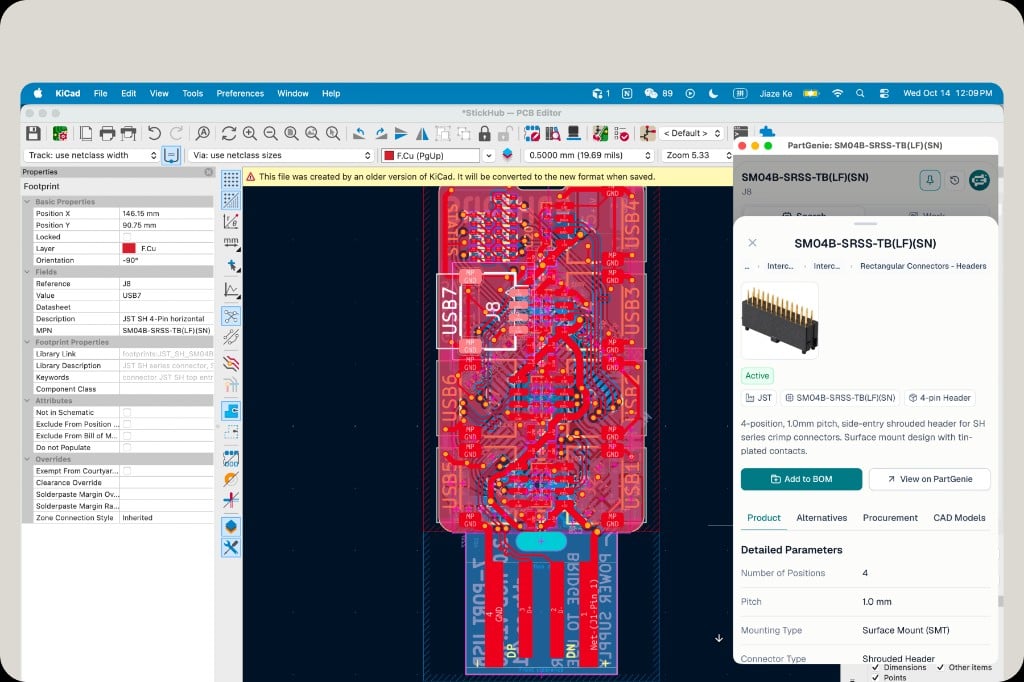
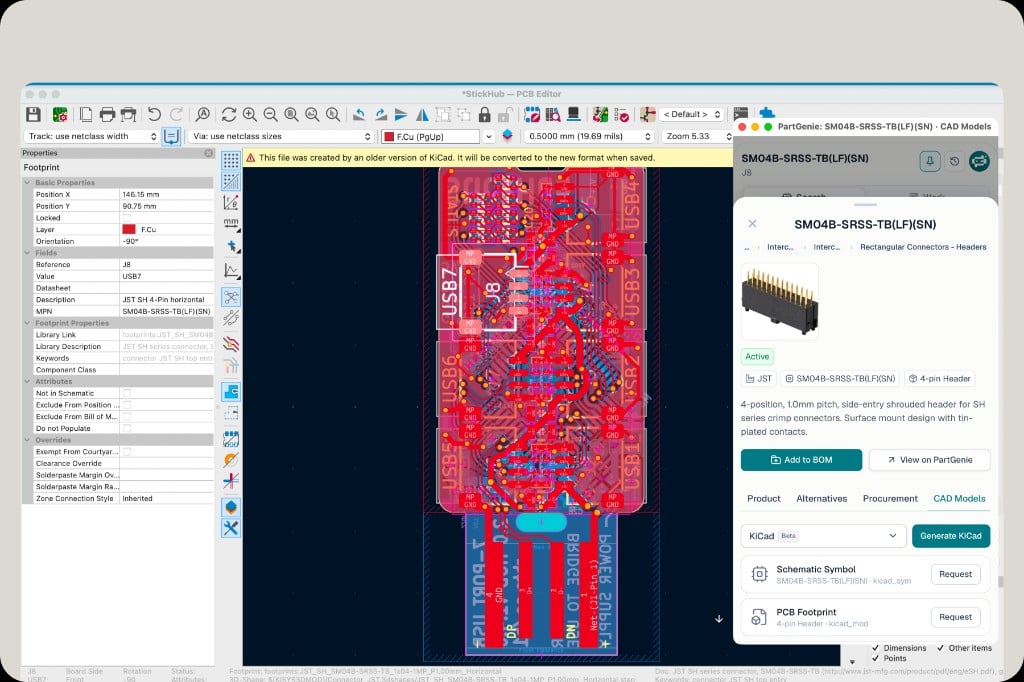
Synchronisation et santé de la nomenclature du projet de travail
Basculez le plugin sur * * Work* * pour agir sur le projet KiCad ouvert.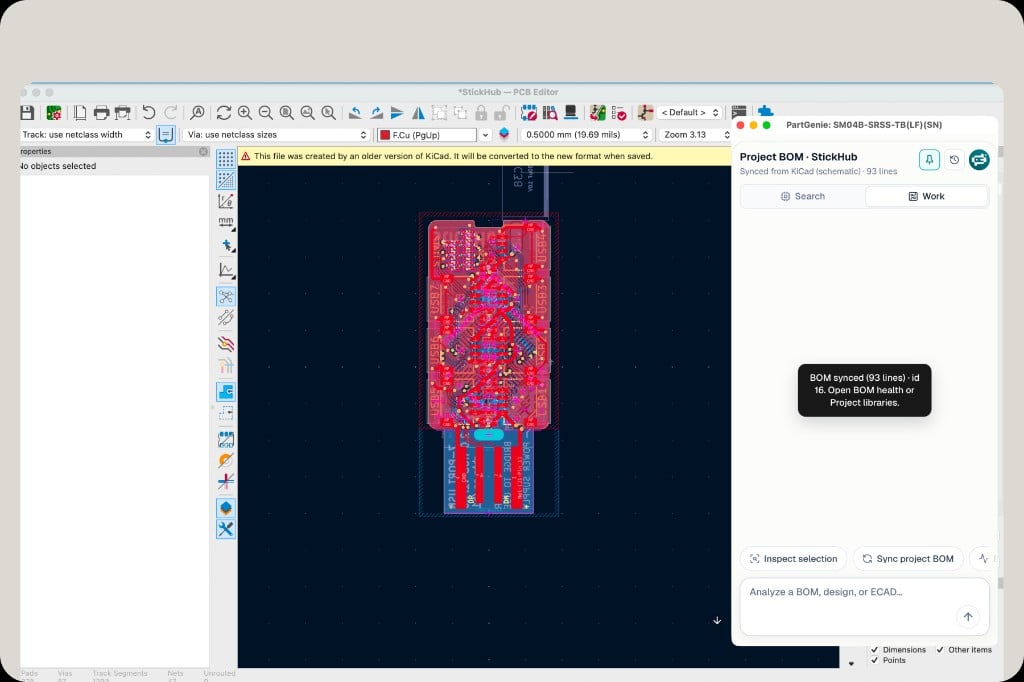
1
Sync project BOM
Click Sync project BOM. PartGenie reads lines from your KiCad schematic and opens or updates the matching BOM in your account (for example “BOM synced (93 lines)”).
2
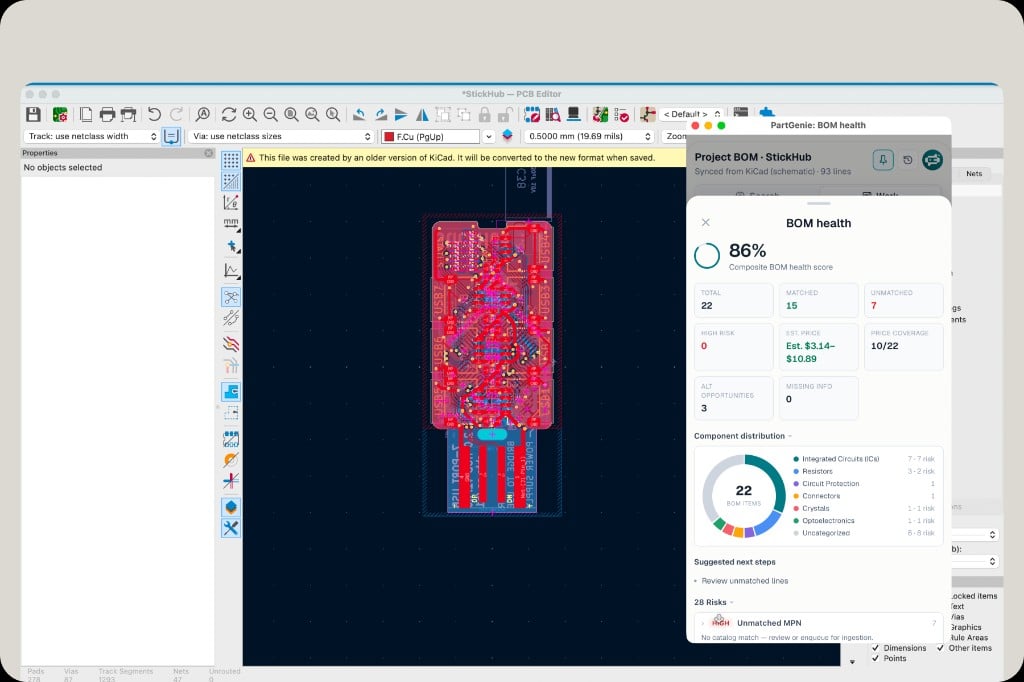
Open BOM health
From the sync confirmation or Work chat, open BOM health to review match rate, risks, and estimated cost.
Bientôt disponible
Remplacement visuel * * par glisser-déposer ECAD* * dans la vue du tableau - échangez des symboles et des empreintes avec des alternatives soutenues par PartGenie sans recherche manuelle dans la bibliothèque.Liés
- [Vue d’ensemble des intégrations] (/fr-FR / intégrations)
- [Intégration EDA] (/fr-FR / intégration eda)
- [Gestion de la nomenclature] (/en-FR / gestion de la nomenclature)
- [génération de la bibliothèque KiCad] (/fr-FR / bibliothèque kicad)