

Instalar
1
Open Integrations
Sign in at app.partgenie.ai. Open Settings → Integrations.
2
Download KiCad
Choose KiCad, download the plugin package, and follow the on-screen install steps for your OS and KiCad version.
3
Sign in inside KiCad
Open the PartGenie panel in KiCad and sign in with the same PartGenie account you use on the web.
Inspección de piezas
Seleccione una huella o símbolo en KiCad, luego use Inspeccionar selección (o abra el panel PartGenie para esa referencia).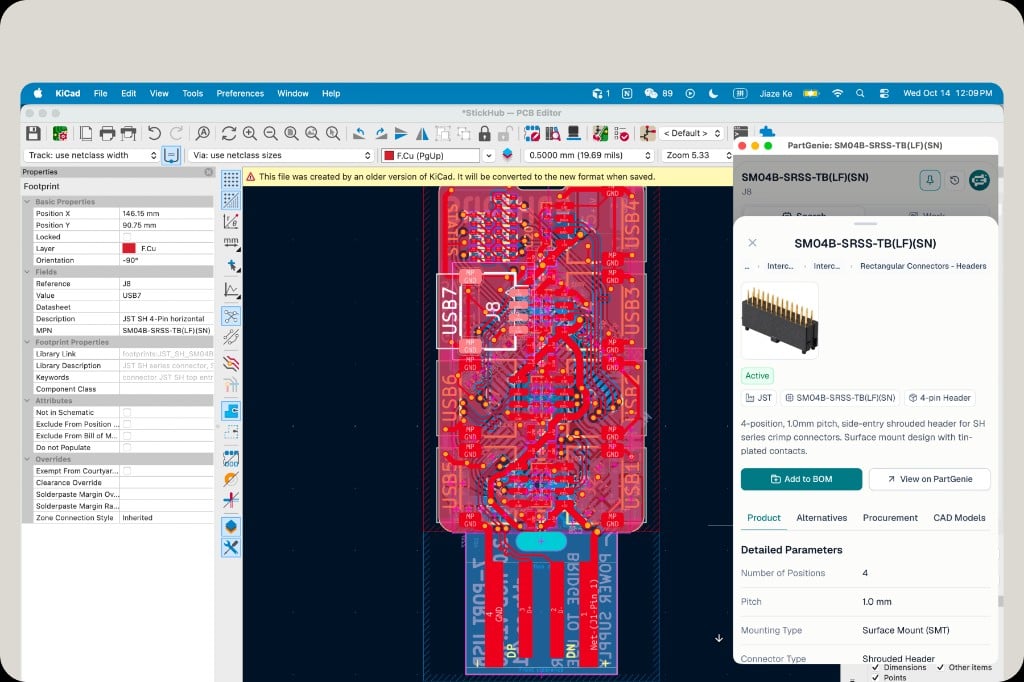
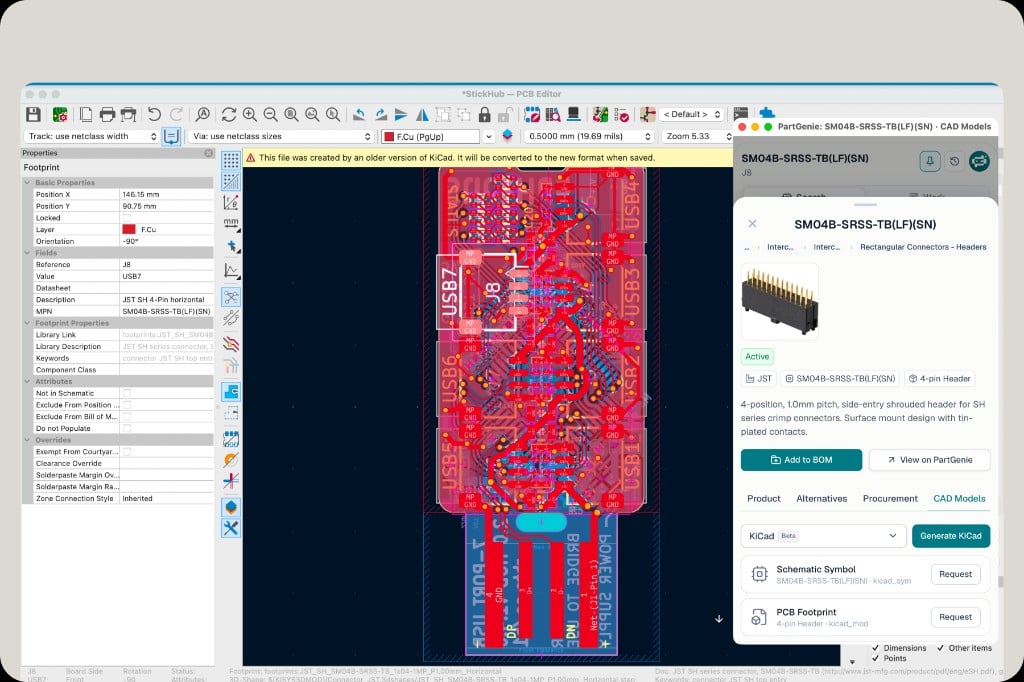
Work-sincronización y estado de la lista de materiales del proyecto
Cambie el complemento a * * Work* * para actuar en el proyecto abierto de KiCad.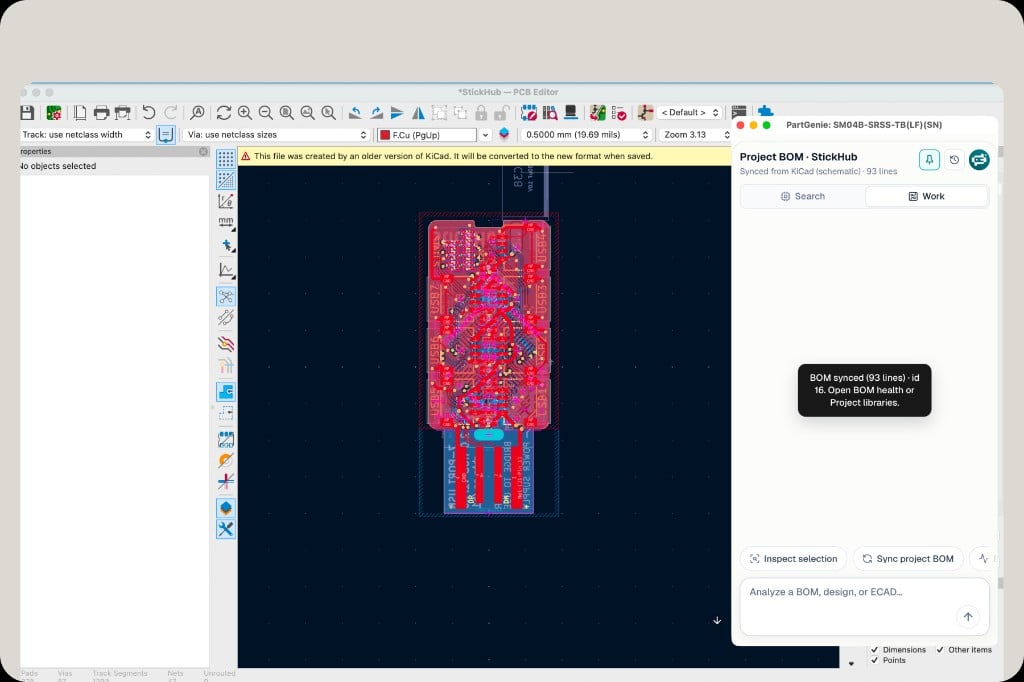
1
Sync project BOM
Click Sync project BOM. PartGenie reads lines from your KiCad schematic and opens or updates the matching BOM in your account (for example “BOM synced (93 lines)”).
2
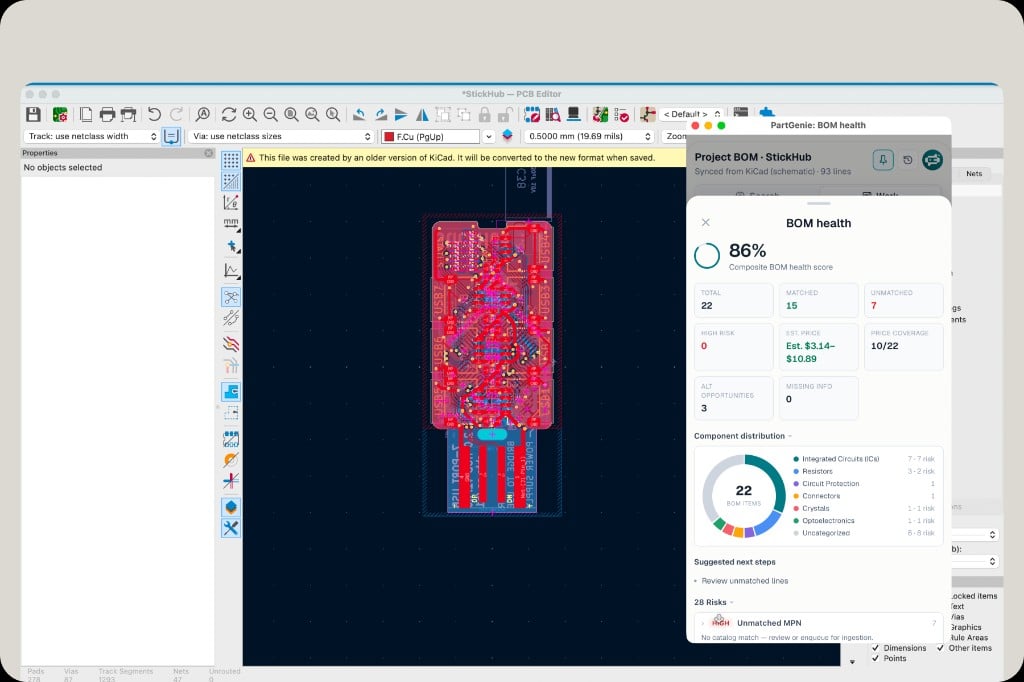
Open BOM health
From the sync confirmation or Work chat, open BOM health to review match rate, risks, and estimated cost.
Próximamente
Visual * * Reemplazo de arrastrar y soltar de ECAD * * en la vista del tablero: intercambie símbolos y huellas con alternativas respaldadas por PartGenie sin búsqueda manual de bibliotecas.Relacionado
- [Resumen de integraciones] (/es-US / integraciones)
- [Integración EDA] (/en-US / eda-integration)
- [Gestión de listas de materiales] (/es-MX/bom-management)
- [Generación de bibliotecas KiCad] (/en-US / kicad-library)