> ## Documentation Index
> Fetch the complete documentation index at: https://help.partgenie.ai/llms.txt
> Use this file to discover all available pages before exploring further.
# KiCad 插件
> 在 KiCad 内查看器件、同步 BOM 健康度并获取 ECAD
**PartGenie KiCad 插件**把器件 intelligence 带进 KiCad PCB 编辑器,不用离开当前工程。
在 **[app.partgenie.ai](https://app.partgenie.ai) → 设置 → 集成 → KiCad** 下载并安装。
## 安装
登录 [app.partgenie.ai](https://app.partgenie.ai),进入 **设置 → 集成**。
选择 **KiCad**,下载插件包,并按页面说明完成与你系统和 KiCad 版本对应的安装。
在 KiCad 中打开 PartGenie 面板,使用与网页相同的 PartGenie 账号登录。
## Part inspect(器件检视)
在 KiCad 里选中封装或符号,点 **Inspect selection**,或在 PartGenie 面板中打开该位号。
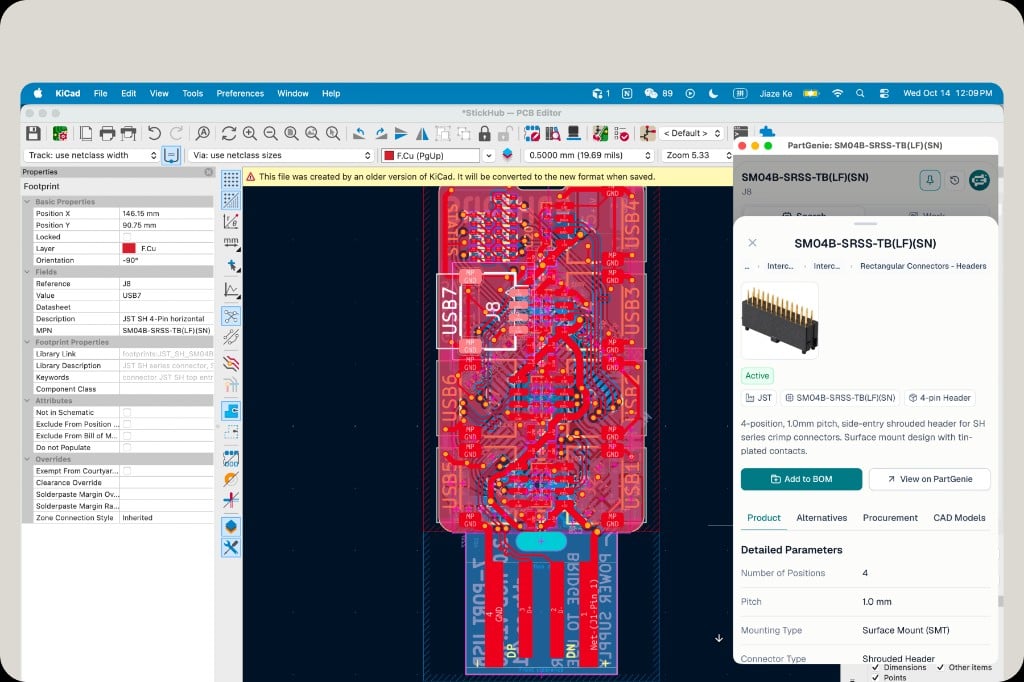 器件面板页签:
| 页签 | 内容 |
| - | - |
| **Product** | 详细参数、生命周期状态、简介 |
| **Alternatives** | 带依据的替代料(与网页 Search 同源) |
| **Procurement** | 市场价格与库存(有数据的分销商) |
| **CAD Models** | 目录 ECAD,或 **Generate KiCad** 生成 symbol / footprint |
器件面板页签:
| 页签 | 内容 |
| - | - |
| **Product** | 详细参数、生命周期状态、简介 |
| **Alternatives** | 带依据的替代料(与网页 Search 同源) |
| **Procurement** | 市场价格与库存(有数据的分销商) |
| **CAD Models** | 目录 ECAD,或 **Generate KiCad** 生成 symbol / footprint |
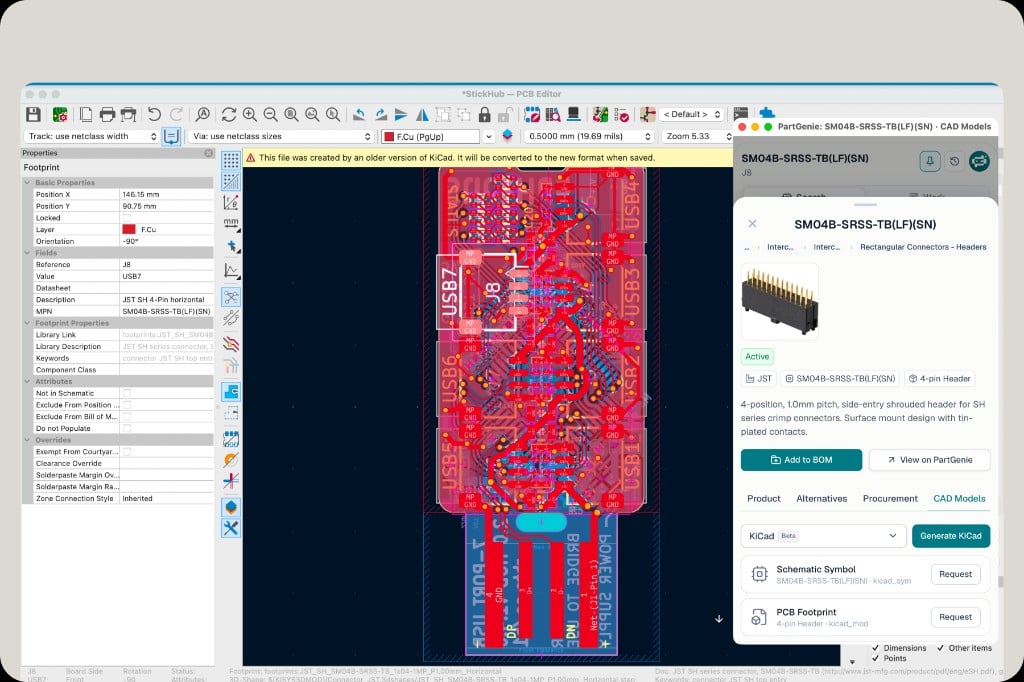 **View on PartGenie** 打开完整器件页、规格书对话与更深的研究。**Add to BOM** 把料加入 PartGenie 项目 BOM。
## Work — BOM 同步与健康度
将插件切到 **Work**,针对当前 KiCad 工程操作。
**View on PartGenie** 打开完整器件页、规格书对话与更深的研究。**Add to BOM** 把料加入 PartGenie 项目 BOM。
## Work — BOM 同步与健康度
将插件切到 **Work**,针对当前 KiCad 工程操作。
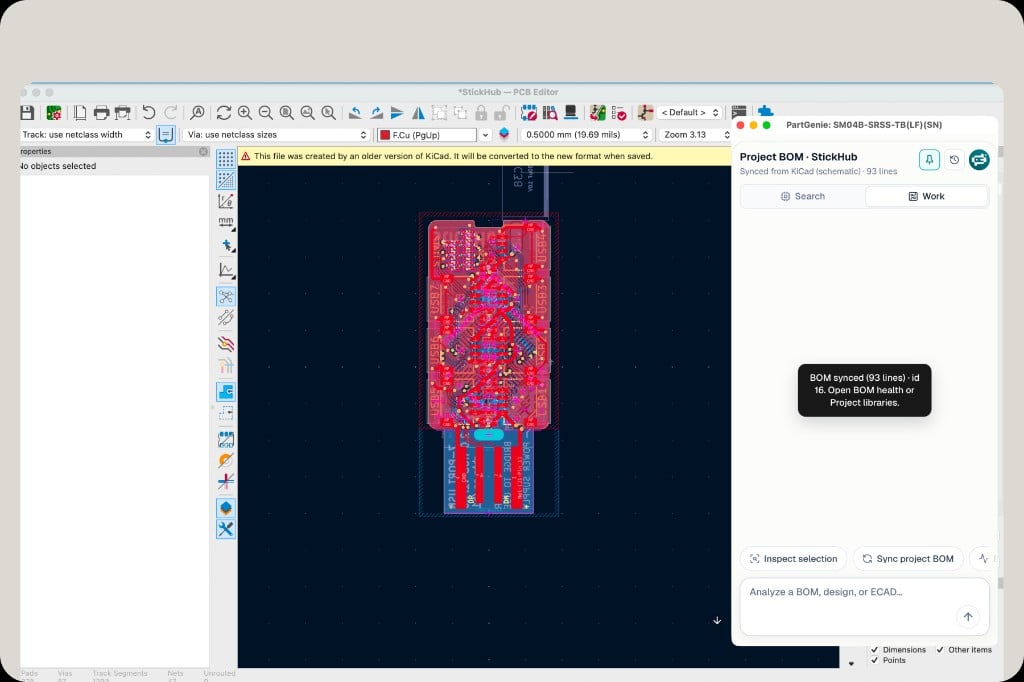 点击 **Sync project BOM**。PartGenie 从 KiCad 原理图读取行并创建或更新账号中的 BOM(例如 “BOM synced (93 lines)”)。
在同步提示或 Work 对话里进入 **BOM health**,查看匹配率、风险与预估成本。
点击 **Sync project BOM**。PartGenie 从 KiCad 原理图读取行并创建或更新账号中的 BOM(例如 “BOM synced (93 lines)”)。
在同步提示或 Work 对话里进入 **BOM health**,查看匹配率、风险与预估成本。
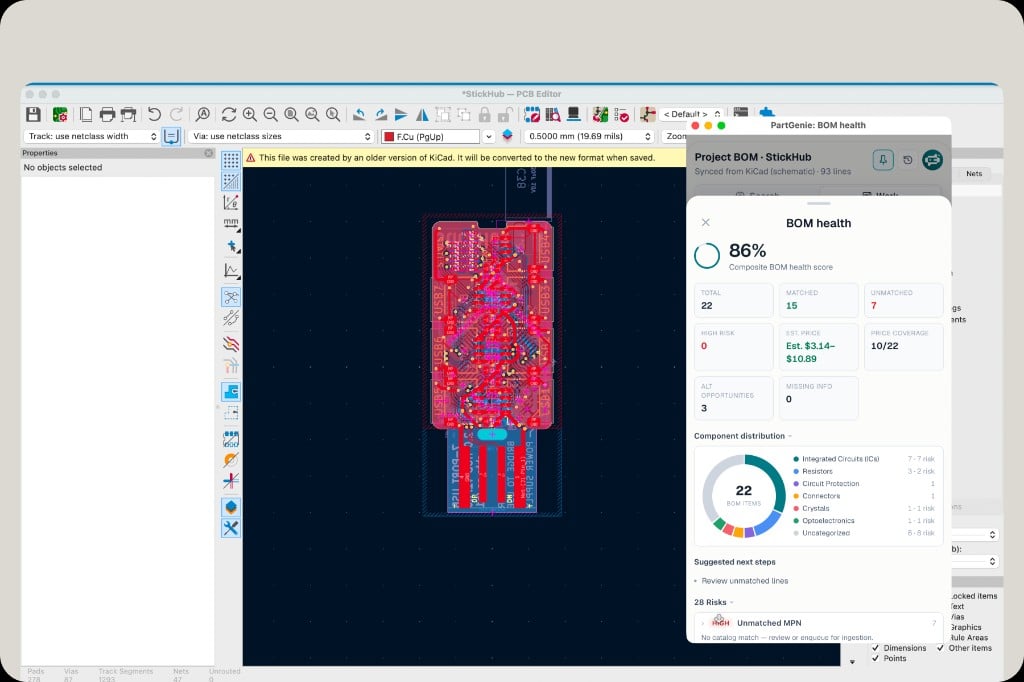 健康度包含综合分、Matched / Unmatched、价格区间、品类分布与风险(如 Unmatched MPN)。可在网页端用同一项目继续分析。
## 即将支持
板级可视化 **ECAD 拖拽替换**——在视图里直接换 symbol / footprint,用 PartGenie 推荐的替代料,减少手工找库。
## 相关
* [集成总览](/zh-Hans/integrations)
* [EDA 集成](/zh-Hans/eda-integration)
* [BOM 管理](/zh-Hans/bom-management)
* [KiCad 库生成](/zh-Hans/kicad-library)
This documentation is built and hosted on [Mintlify](https://mintlify.com), a developer documentation platform.
健康度包含综合分、Matched / Unmatched、价格区间、品类分布与风险(如 Unmatched MPN)。可在网页端用同一项目继续分析。
## 即将支持
板级可视化 **ECAD 拖拽替换**——在视图里直接换 symbol / footprint,用 PartGenie 推荐的替代料,减少手工找库。
## 相关
* [集成总览](/zh-Hans/integrations)
* [EDA 集成](/zh-Hans/eda-integration)
* [BOM 管理](/zh-Hans/bom-management)
* [KiCad 库生成](/zh-Hans/kicad-library)
This documentation is built and hosted on [Mintlify](https://mintlify.com), a developer documentation platform.