> ## Documentation Index
> Fetch the complete documentation index at: https://help.partgenie.ai/llms.txt
> Use this file to discover all available pages before exploring further.
# KiCad plugin
> Inspect parts, sync BOM health, and request ECAD from inside KiCad
The **PartGenie KiCad plugin** brings component intelligence into KiCad PCB Editor—without leaving your board file.
Download and install from **[app.partgenie.ai](https://app.partgenie.ai) → Settings → Integrations → KiCad**.
## Install
Sign in at [app.partgenie.ai](https://app.partgenie.ai). Open **Settings → Integrations**.
Choose **KiCad**, download the plugin package, and follow the on-screen install steps for your OS and KiCad version.
Open the PartGenie panel in KiCad and sign in with the same PartGenie account you use on the web.
## Part inspect
Select a footprint or symbol in KiCad, then use **Inspect selection** (or open the PartGenie panel for that reference).
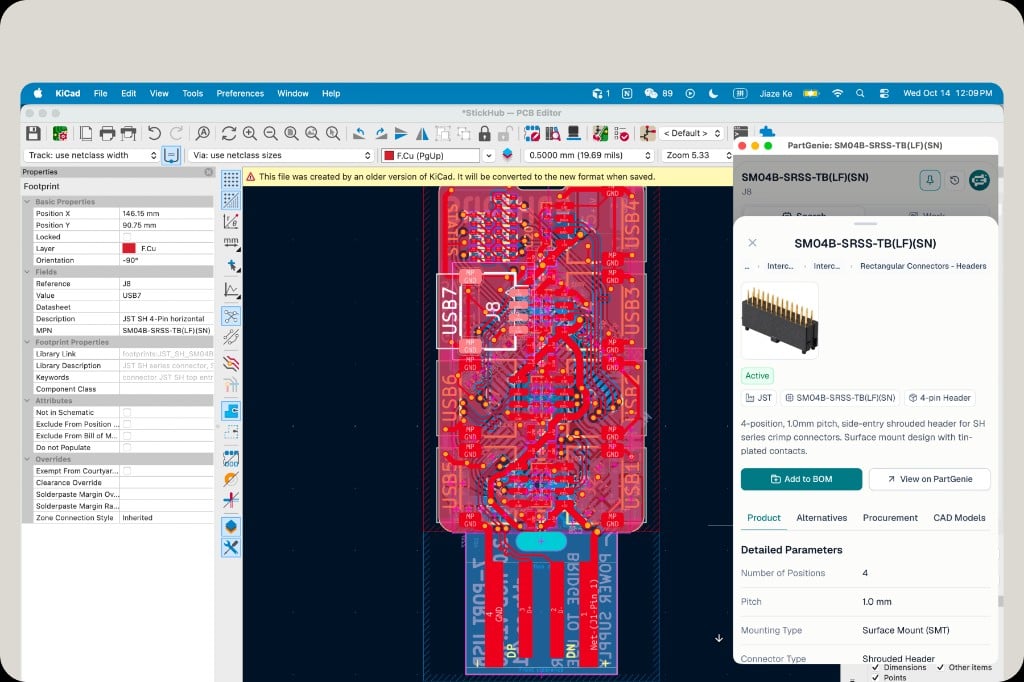 From the part panel you can:
| Tab | What you get |
| - | - |
| **Product** | Detailed parameters, lifecycle status, description |
| **Alternatives** | Substitutes with evidence (same workflow as web Search) |
| **Procurement** | Live market price and stock where available |
| **CAD Models** | Catalog ECAD or **Generate KiCad** for symbol and footprint |
From the part panel you can:
| Tab | What you get |
| - | - |
| **Product** | Detailed parameters, lifecycle status, description |
| **Alternatives** | Substitutes with evidence (same workflow as web Search) |
| **Procurement** | Live market price and stock where available |
| **CAD Models** | Catalog ECAD or **Generate KiCad** for symbol and footprint |
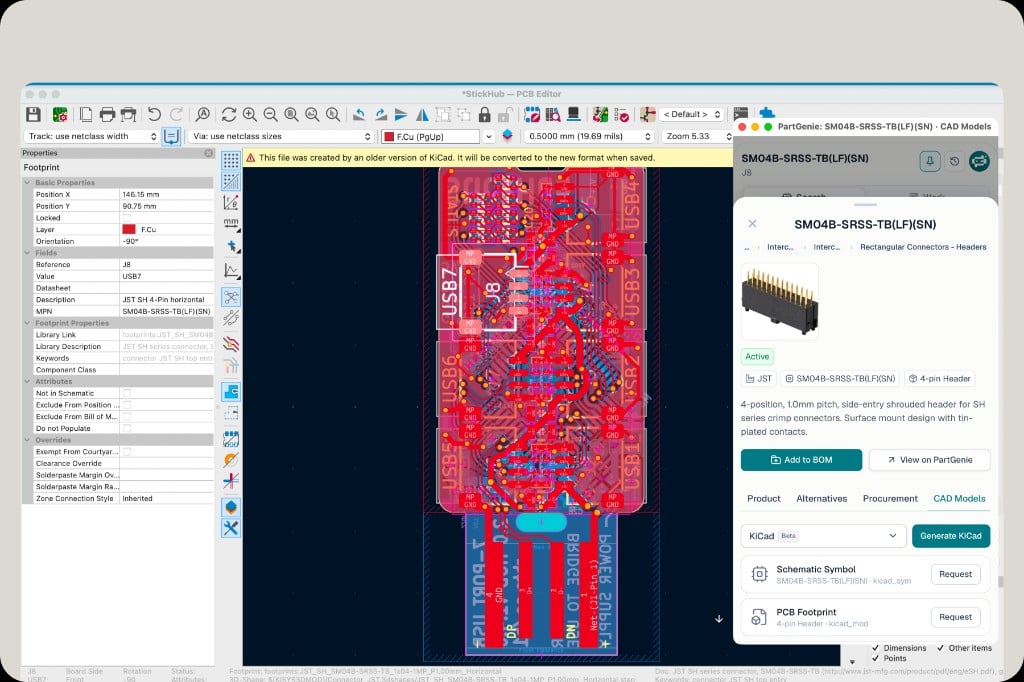 Use **View on PartGenie** for the full component page, datasheet chat, and deeper research. **Add to BOM** sends the part into your PartGenie project BOM.
## Work — project BOM sync & health
Switch the plugin to **Work** to act on the open KiCad project.
Use **View on PartGenie** for the full component page, datasheet chat, and deeper research. **Add to BOM** sends the part into your PartGenie project BOM.
## Work — project BOM sync & health
Switch the plugin to **Work** to act on the open KiCad project.
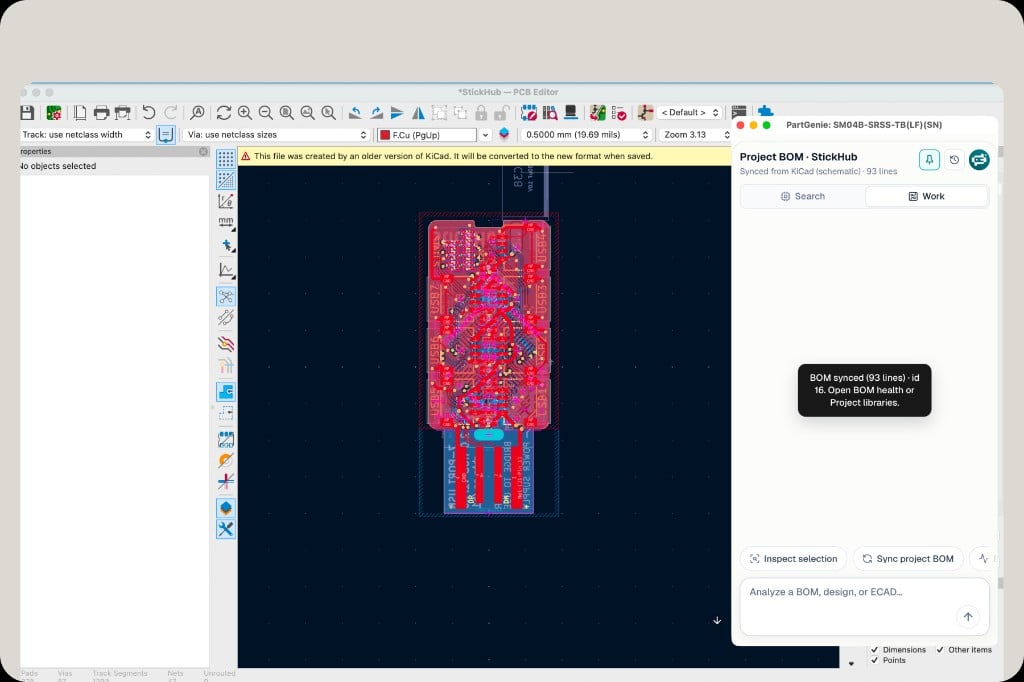 Click **Sync project BOM**. PartGenie reads lines from your KiCad schematic and opens or updates the matching BOM in your account (for example “BOM synced (93 lines)”).
From the sync confirmation or Work chat, open **BOM health** to review match rate, risks, and estimated cost.
Click **Sync project BOM**. PartGenie reads lines from your KiCad schematic and opens or updates the matching BOM in your account (for example “BOM synced (93 lines)”).
From the sync confirmation or Work chat, open **BOM health** to review match rate, risks, and estimated cost.
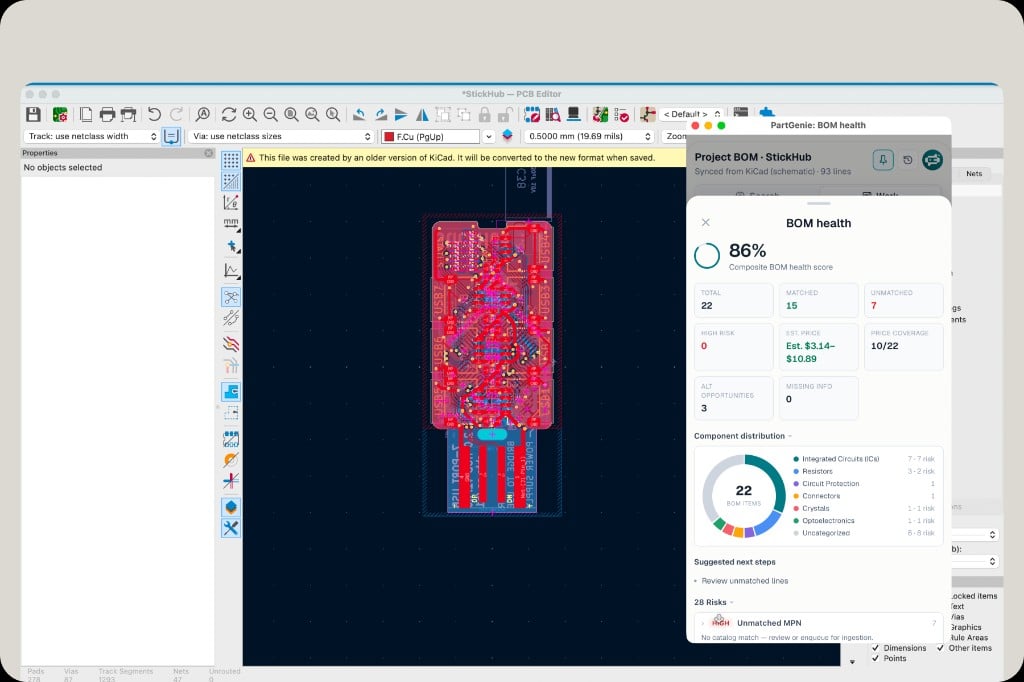 BOM health includes composite score, matched / unmatched lines, estimated price range, category mix, and flagged risks (such as unmatched MPN). Continue analysis in the web app with the same project.
## Coming soon
Visual **ECAD drag-and-drop replacement** in the board view—swap symbols and footprints with PartGenie-backed alternatives without manual library hunting.
## Related
* [Integrations overview](/en-US/integrations)
* [EDA integration](/en-US/eda-integration)
* [BOM management](/en-US/bom-management)
* [KiCad library generation](/en-US/kicad-library)
This documentation is built and hosted on [Mintlify](https://mintlify.com), a developer documentation platform.
BOM health includes composite score, matched / unmatched lines, estimated price range, category mix, and flagged risks (such as unmatched MPN). Continue analysis in the web app with the same project.
## Coming soon
Visual **ECAD drag-and-drop replacement** in the board view—swap symbols and footprints with PartGenie-backed alternatives without manual library hunting.
## Related
* [Integrations overview](/en-US/integrations)
* [EDA integration](/en-US/eda-integration)
* [BOM management](/en-US/bom-management)
* [KiCad library generation](/en-US/kicad-library)
This documentation is built and hosted on [Mintlify](https://mintlify.com), a developer documentation platform.