> ## Documentation Index
> Fetch the complete documentation index at: https://help.partgenie.ai/llms.txt
> Use this file to discover all available pages before exploring further.
# ECAD & footprints
> Open a part's CAD Models tab for catalog footprints and symbols, or generate a KiCad library when you need one built
PartGenie has two ways to get ECAD for a part. Use the one that matches what you need.
| You need | Where |
| - | - |
| A footprint / symbol / 3D already in the catalog | Component drawer → **CAD Models** |
| A KiCad library generated and checked against the datasheet | [KiCad library generation](/en-US/kicad-library) |
## Get a catalog model
Search the MPN, then click the **MPN badge** in the answer or the part card. That opens the component drawer.
The drawer tabs are **Product**, **Procurement**, and **CAD Models**. Procurement is live price and stock. **CAD Models** is the footprint library for that part.
If the part has a library asset, download the footprint, symbol, or 3D from this tab and import it into your EDA tool.
Not every MPN has a catalog model. If the tab is empty, generate one instead of guessing a generic 0603.
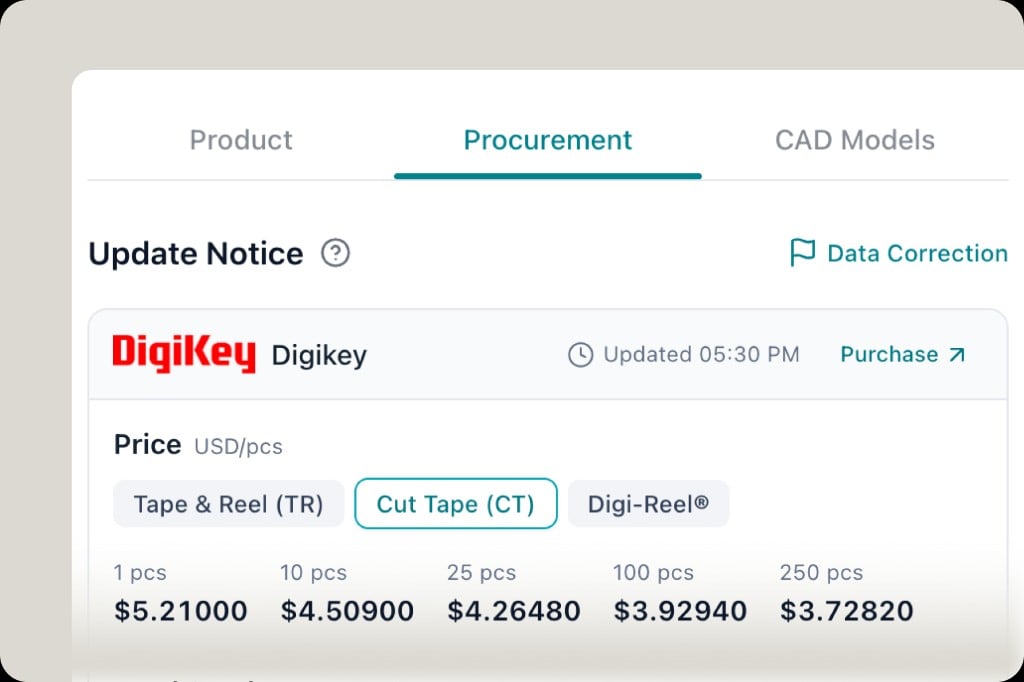 The screenshot above is the **Procurement** tab (price tiers and **Purchase**). **CAD Models** is the tab immediately to its right.
## When to generate instead
Generate a KiCad library when:
* CAD Models has no file for this exact MPN and package
* You need Symbol + Footprint + STEP together, with an evidence table (pin count, body, pad, pitch) tied to a datasheet page
* You want **KiCad native import** checks before you place the part
Ask in Search:
```
generate verified KiCAD for RC0603FR-071KL
```
Full steps: [KiCad library generation](/en-US/kicad-library).
A catalog footprint and a generated library can disagree on pad size or pin 1. For anything you will fabricate, check both against the datasheet page, not against each other.
## Related
* [KiCad library generation](/en-US/kicad-library)
* [Live sourcing](/en-US/live-sourcing) — the Procurement tab next to CAD Models
* [Datasheet citations](/en-US/datasheet-citations)
The screenshot above is the **Procurement** tab (price tiers and **Purchase**). **CAD Models** is the tab immediately to its right.
## When to generate instead
Generate a KiCad library when:
* CAD Models has no file for this exact MPN and package
* You need Symbol + Footprint + STEP together, with an evidence table (pin count, body, pad, pitch) tied to a datasheet page
* You want **KiCad native import** checks before you place the part
Ask in Search:
```
generate verified KiCAD for RC0603FR-071KL
```
Full steps: [KiCad library generation](/en-US/kicad-library).
A catalog footprint and a generated library can disagree on pad size or pin 1. For anything you will fabricate, check both against the datasheet page, not against each other.
## Related
* [KiCad library generation](/en-US/kicad-library)
* [Live sourcing](/en-US/live-sourcing) — the Procurement tab next to CAD Models
* [Datasheet citations](/en-US/datasheet-citations)